
MCUXpresso for VS Code Development#
This guide covers using MCUXpresso for VS Code extension to build, debug, and develop SDK applications with an integrated development environment.
Prerequisites#
SDK workspace initialized (GitHub Repository SDK or Repository-Layout SDK Package)
Development tools installed per Installation Guide
Visual Studio Code installed
MCUXpresso for VS Code extension installed
Extension Installation#
Install MCUXpresso for VS Code#
The MCUXpresso for VS Code extension provides integrated development capabilities for MCUXpresso SDK projects. Refer to the MCUXpresso for VS Code documentation for detailed installation and setup instructions.
SDK Import and Setup#
Import Methods#
The SDK can be imported in several ways. The MCUXpresso for VS Code extension supports both GitHub Repository SDK and Repository-Layout SDK Package distributions.
Import GitHub Repository SDK#
Click Import Repository from the QUICKSTART PANEL

Note: You can import the SDK in several ways. Refer to the MCUXpresso for VS Code documentation for details.
Select Local if you’ve already obtained the SDK according to setting up the repo. Select your location and click Import.

Import Repository-Layout SDK Package#
Click Import Repository from the QUICKSTART PANEL
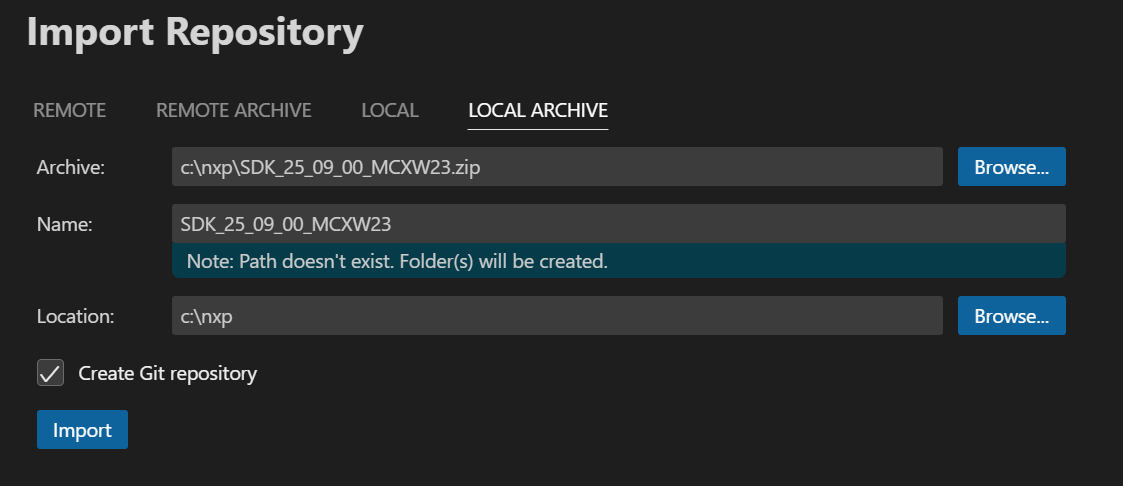
Select Local if you’ve already unzipped the Repository-Layout SDK Package. Select your location and click Import.
Else if the SDK is ZIP archive, select Local Archive, browse to the downloaded SDK ZIP file, fill the link of expect location, then click Import.
Building Example Applications#
Import Example Project#
Click Import Example from Repository from the QUICKSTART PANEL

Configure project settings:
MCUXpresso SDK: Select your imported SDK
Arm GNU Toolchain: Choose toolchain
Board: Select your target development board
Template: Choose example category
Application: Select specific example (e.g., hello_world)
App type: Choose between Repository applications or Freestanding applications
Click Import

Application Types#
Repository Applications:
Located inside the MCUXpresso SDK
Integrated with SDK workspace
Freestanding Applications:
Imported to user-defined location
Independent of SDK location
Trust Confirmation#
VS Code will prompt you to confirm if the imported files are trusted. Click Yes to proceed.
Building Projects#
Build Process#
Navigate to PROJECTS view
Find your project
Click the Build Project icon

The integrated terminal will display build output at the bottom of the VS Code window.
Running and Debugging#
Serial Monitor Setup#
Open Serial Monitor from VS Code’s integrated terminal

Configure serial settings:
VCom Port: Select port for your device
Baud Rate: Set to 115200
Debug Session#
Navigate to PROJECTS view
Click the play button to initiate a debug session
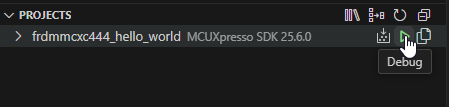
The debug session will begin with debug controls initially at the top of the interface.
Debug Controls#
Use the debug controls to manage execution:
Continue: Resume code execution
Step controls: Navigate through code
Stop: Terminate debug session
 .
.
Monitor Output#
Observe application output in the Serial Monitor to verify correct operation.

Debug Probe Support#
For comprehensive information on debug probe support and configuration, refer to the MCUXpresso for VS Code Debug documentation.
Project Configuration#
Workspace Management#
The extension integrates with the MCUXpresso SDK workspace structure, providing access to:
Example applications
Board configurations
Middleware components
Build system integration
Multi-Project Support#
The PROJECTS view allows management of multiple imported projects within the same workspace.
Troubleshooting#
Import Issues#
SDK not detected:
Verify SDK workspace is properly initialized
Ensure all required repositories are updated
Check SDK manifest files are present
Project import failures:
Confirm board support exists for selected example
Verify toolchain installation
Check example compatibility with selected board
Build Problems#
Build failures:
Check integrated terminal for error messages
Verify all dependencies are installed
Ensure toolchain is properly configured
Debug Issues#
Debug session fails:
Verify board connection via USB
Check debug probe drivers are installed
Confirm build completed successfully
Serial monitor problems:
Verify correct VCom port selection
Check baud rate configuration (115200)
Ensure board drivers are installed
Integration with Command Line#
MCUXpresso for VS Code integrates with the underlying west build system, allowing seamless integration with command line workflows described in Command Line Development.
Advanced Features#
Project Types#
The extension supports both repository-based and freestanding project types, providing flexibility in project organization and SDK integration.
Build System Integration#
The extension leverages the MCUXpresso SDK build system, providing access to all build configurations and options available through command line tools.
Next Steps#
Explore additional examples in the SDK
Review Command Line Development for advanced build options
Refer to the MCUXpresso for VS Code documentation for detailed documentation
Learn about SDK Architecture for better understanding of the development environment