
host_phdc_manager#
Overview#
The Host PHDC Manager Example is a simple demonstration program based on the MCUXpresso SDK.
The application supports the USB weight scale device. It prints out the body mass and body mass index information when the USB weight scale device is attached.
System Requirement#
Hardware requirements#
Mini/micro USB cable
USB A to micro AB cable
Hardware (Tower module/base board, and so on) for a specific device
Personal Computer
Software requirements#
The project files are in:
<MCUXpresso_SDK_Install>/boards//usb_examples/usb_host_phdc_manager/ / .
The
is Bare Metal or FreeRTOS OS.
Terminal tool.
Getting Started#
Hardware Settings#
For detailed instructions, see the appropriate board User’s Guide.
Set the hardware jumpers (Tower system/base module) to default settings.
Prepare the example#
Download the program to the target board.
Power off the target board and power on again.
Connect a USB weight scale device to the board.
this example could be tested with the “usb_device_phdc_manager” example in pairs.
Run the example#
Connect the board UART to the PC and open the COM port in a terminal tool.
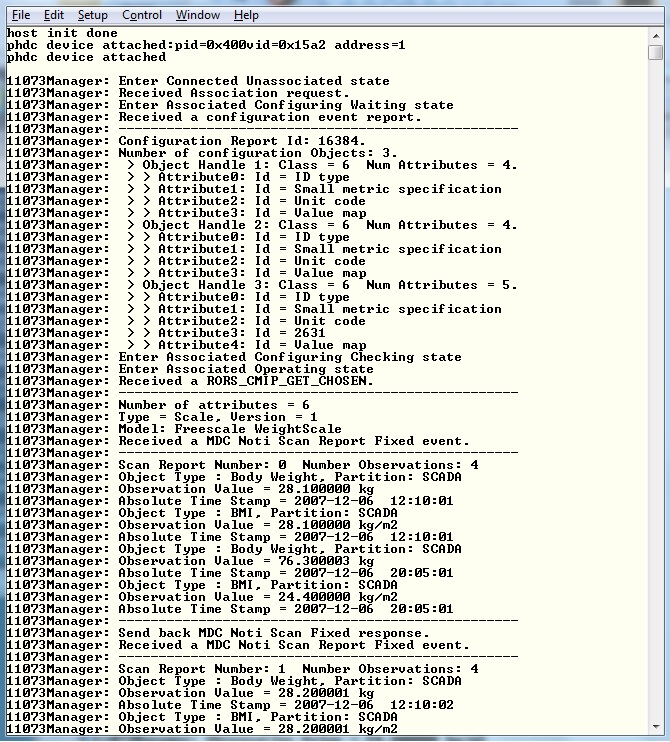
Make sure to use a USB HUB or an adapter with OTG functionality firstly. Plug in the USB weight scale device to the board that is running the PHDC manager example. The attached information prints out in the terminal.
The weight scale data (body mass and body mass index) is automatically sent to the host. The scan report number, time, value, and unit of each field is shown in terminal tool.
The following figure is an example for attaching one USB weight scale device.
Supported Boards#
FRDM-K22F
Getting Started
Hardware Settings
The Jumper settings:\n J22 1-2.
LPCXpresso55S69
Getting Started
Hardware Settings
The Jumper settings:\n J6 1-2 and J7 open for high speed mode, J6 2-3 and J7 shunt for full speed mode.
The external +5V power only port shoud be connected with a power USB cable to provide USB VBUS.
LPCXpresso54S018
Getting Started
Hardware Settings
The Jumper settings:\n J9 1-2 high speed mode,2-3 full speed mode; J10 open high speed, shunt full speed; J11 2-3, J12 2-3, J13 2-3 , need provide external power through J1.
LPCXpresso55S16
Getting Started
Hardware Settings
The Jumper settings:\n JP20 1-2, JP21 1-2 and JP22 1-2 for chip power. JP2 1-2 and JS2 shunt for full speed mode, JP2 2-3 and JS2 open for high speed mode.
The external +5V power only port shoud be connected with a power USB cable to provide USB VBUS.
LPCXpresso54S018M
Getting Started
Hardware Settings
The Jumper settings:\n J9 1-2 high speed mode,2-3 full speed mode; J10 open high speed, shunt full speed; J11 2-3, J12 2-3, J13 2-3 , need provide external power through J1.
LPCXpresso55S28
Getting Started
Hardware Settings
The Jumper settings:\n J6 1-2 and J7 open for high speed mode, J6 2-3 and J7 shunt for full speed mode.
The external +5V power only port shoud be connected with a power USB cable to provide USB VBUS.
LPCXpresso54628
Getting Started
Hardware Settings
The Jumper settings:\n J9 1-2 high speed mode,2-3 full speed mode; J10 open high speed, shunt full speed; J11 2-3, J12 2-3, J13 2-3 , need provide external power through J1.
MCX-N5XX-EVK
Getting Started
Hardware Settings
The Jumper settings:\n J21 1-2.
FRDM-K32L2A4S
Getting Started
Hardware Settings
The Jumper settings:\n J9 1-2, J16 1-2.
MCX-N9XX-EVK
Getting Started
Hardware Settings
The Jumper settings:\n J21 1-2.