
Performance optimization#
This chapter describes factors that affect runtime performance in GUI Guider projects.
Hardware acceleration#
LVGL is a software library that fully implements a customizable graphical user interface (drawing, partial screen refresh, input events, and animations). By default, LVGL uses a software pixel-based drawing engine. Several drawing features can also be offloaded to hardware accelerators instead of the CPU.
While the hardware accelerator runs, the LVGL drawing thread can be suspended by the RTOS, which may then switch to another task or to the idle state. In the idle state, the CPU is suspended to save power. Hardware accelerators typically process pixels faster than the CPU, which increases the frame rendering rate.
GUI Guider allows users to enable or disable the PXP and VGLite accelerators on supported MCU devices, as well as the 2D accelerator (G2D/GPU2D, PXP, or DPU, depending on the device) on supported MPU devices.
Note: The hardware accelerators can also be enabled or disabled manually in
lv_conf.h.
MCU#
On MCU-based targets, performance optimization often centers on memory bandwidth, buffer strategy, redraw behavior, and the cost of resource-heavy widgets or effects. The two main MCU-side accelerators supported by GUI Guider are PXP and VGLite.
The following table summarizes LVGL hardware acceleration support across the supported MCU evaluation boards:
Accelerator |
MIMXRT1064-EVK |
MIMXRT1060-EVKC |
MIMXRT1170-EVKB |
MIMXRT595-EVK |
MIMXRT700-EVK |
|---|---|---|---|---|---|
PXP |
✓ |
✓ |
✓ |
✗ |
✗ |
VGLite |
✗ |
✗ |
✓ |
✓ |
✓ |
PXP enablement#
Enable the PXP accelerator in GUI Guider LVGL settings.
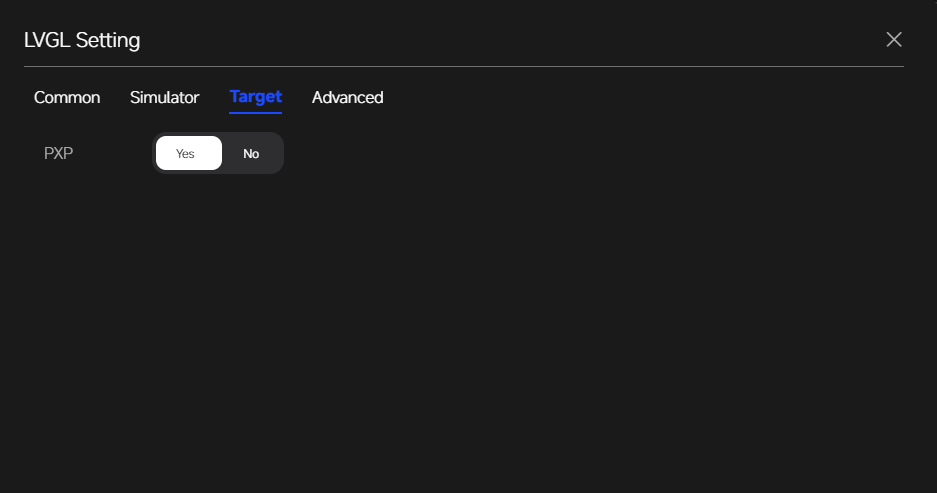
PXP is a pixel processing HW engine. To check whether PXP is available on a specific NXP device, see the device reference manual or the board configuration.
To enable PXP in LVGL, set the following flags to 1 in lv_conf.h:
#define LV_USE_PXP 1
#define LV_USE_DRAW_PXP 1
In LVGL, PXP can accelerate the following operations:
Fill area with color (without radius, without gradient) + optional opacity.
Blit source image (RGB565, ARGB8888, XRGB8888) over destination (RGB565, RGB888, ARGB8888, XRGB8888), with optional opacity.
Recolor source image RGB565.
Scale and rotate (90°, 180°, 270°) source image RGB565.
Blending layers (with the same supported formats as blitting).
Rotate screen (90°, 180°, 270°).
VGLite enablement#
Enable the VGLite accelerator in GUI Guider LVGL settings.
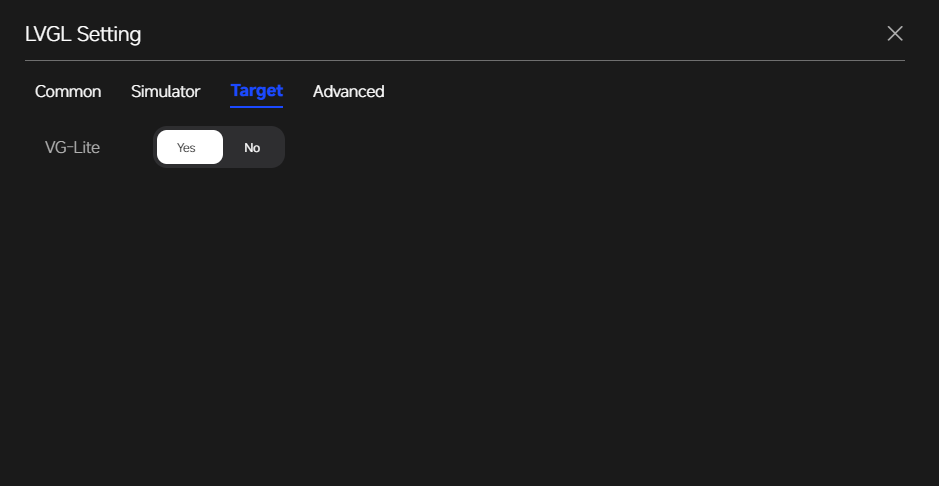
VGLite is an API that uses the vector/raster 2D GPU. To check whether a 2D GPU is available on a specific NXP device, see the device reference manual or the board configuration.
To enable VGLite in LVGL, set the following flags to 1 in lv_conf.h:
#define LV_USE_DRAW_VG_LITE 1
#define LV_VG_LITE_USE_GPU_INIT 1
In LVGL, VGLite can accelerate the following operations:
Fill area with color (with radius or gradient).
Blit source image (any format from
lv_vg_lite_is_src_cf_supported()) over destination (any format fromlv_vg_lite_is_dest_cf_supported()).Recolor source image.
Scale and rotate (any decimal degree) source image.
Blending layers (with the same supported formats as blitting).
Draw letters (blit bitmap letters / raster font).
Draw full borders (
LV_BORDER_SIDE_FULL).Draw arcs (with rounded edges).
Draw lines (with dash or rounded edges).
Draw triangles with color (with gradient).
MPU#
On MPU-based targets, optimization often involves operating system overhead, graphics stack configuration, and runtime resource access patterns. On supported MPU devices, GUI Guider can enable the available 2D hardware accelerator (G2D/GPU2D, PXP, or DPU, depending on the device) for further performance gains.
The following MPU evaluation boards support 2D hardware acceleration:
Device |
Accelerator |
|---|---|
MCIMX8ULPEVK |
GPU2D |
MCIMX93EVK |
PXP |
MCIMX93FRDM |
PXP |
MCIMX943EVK |
PXP |
IMX95LPD5EVK-19 |
DPU |
MPU accelerator enablement#
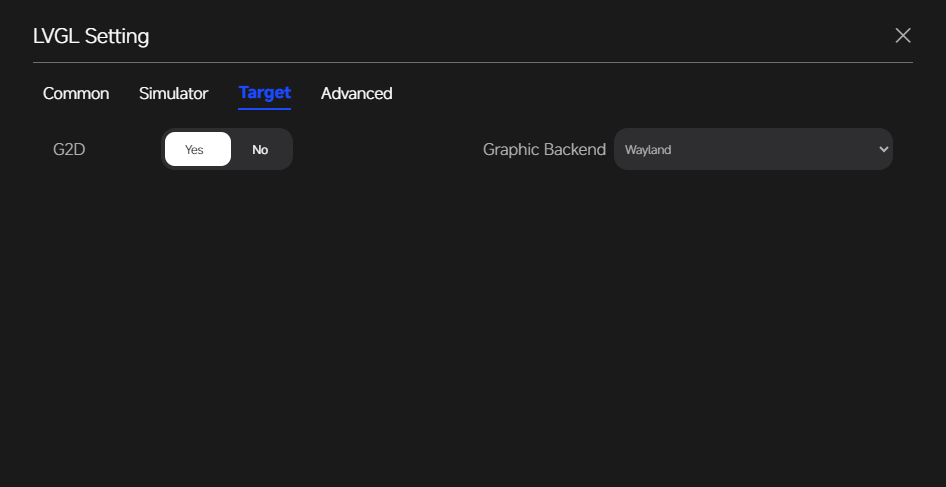
The accelerator can only be enabled on supported boards when using the Wayland backend. When enabled, the available hardware accelerator is used on supported devices to improve frame rate (FPS) and reduce CPU load.
Further reading#
For details on how to use hardware acceleration on NXP devices with LVGL v9, see the LVGL v9 NXP integration guide.
Performance tuning best practices#
A practical performance workflow usually includes:
Starting with a simple and correct UI baseline.
Measuring on real hardware whenever possible.
Reducing oversized resources and unnecessary redraws.
Reviewing animation cost and update frequency.
Enabling acceleration only after verifying compatibility.
Performance tuning is most effective when it is based on measurement rather than assumption.
Tips to improve the performance#
The following tips summarize how to achieve a high FPS with LVGL:
Use hardware acceleration
A board with hardware acceleration (PXP, VGLite, or an MPU 2D accelerator) usually outperforms one without. When possible, select a board with hardware acceleration and enable it in the project. For details, see Hardware acceleration.
Use internal SRAM
Internal SRAM provides better access performance than other RAM types. If the board has enough SRAM, place the frame buffers and other performance-critical data in SRAM.
Use a suitable C library
The Newlib library typically delivers better
memcpyperformance than NewlibNano. For applications that perform a large amount of data copy, Newlib is the recommended choice.Use a suitable compiler optimization level
In general,
-O2and-O3yield better runtime performance than other optimization levels. The optimization level can be changed from the project build configuration used by GUI Guider.Note: In GUI Guider, Balance corresponds to
-O2, Size corresponds to-Os, and Speed corresponds to-O3.Redraw only what changes
Invalidate only the parts of the display that need updating. Avoiding unnecessary redraws reduces both CPU load and memory bandwidth.
Adjust the display refresh period
The display refresh rate is a hard upper bound on the achievable frame rate. In general, a shorter refresh period leads to a higher frame rate. For example, a 60 Hz display has a refresh period of approximately 16.67 ms (
1 s / 60 ≈ 16.67 ms). The refresh period can be tuned through theLV_DEF_REFR_PERIODmacro inlv_conf.hto match the target display.
Performance tuning for i.MX RT boards#
This section describes practical performance optimization steps for i.MX RT boards when working with MCUXpresso IDE. The i.MX RT595 is used as the reference example. Some steps (such as the G1120B0MIPI display path and the SRAM address 0x20000000U) are RT595-specific. The same general techniques apply to other i.MX RT boards with the corresponding board configuration.
Prerequisites
A GUI Guider application based on the MCUXpresso IDE toolchain.
Optimization methods
The following optimization methods can be applied as needed, depending on the specific project requirements.
Use Release build,
-O2, and NewlibUpdate the MCUXpresso project settings to use the Release build configuration, the
-O2optimization level, and the Newlib library. For details, see the MCUXpresso IDE documentation.Adjust the display refresh period in
lv_conf.hChange the display refresh period in
lv_conf.h. The default value is shown below for reference:#define LV_DEF_REFR_PERIOD 30 /* [ms] */
For example, for a 60 Hz display, set the value to
17(approximately1 s / 60 ≈ 16.67 ms).Enable the VGLite hardware accelerator
Enable VGLite acceleration by changing the following line in
lv_conf.h:#define LV_USE_DRAW_VG_LITE 0 /* change to 1 to enable VGLite */
Place the frame buffer in SRAM (G1120B0MIPI circular display)
When the NXP G1120B0MIPI circular display is selected, the frame buffer can be placed in SRAM for better access performance. Update the following lines in
display_support.h:#define DEMO_BUFFER0_ADDR 0x28000000U /* change to 0x20000000U */ #define DEMO_BUFFER1_ADDR 0x28200000U /* change to 0x20100000U */
Place image arrays in SRAM
When the G1120B0MIPI circular display is selected and only a few images are used, the image arrays can also be placed in SRAM. First, add the following macro definition in
lv_conf.h:#define LV_ATTRIBUTE_LARGE_CONST __attribute__((section("DataQuickAccess")))Then update the C array definitions in the image source files to use the macro, for example:
LV_ATTRIBUTE_LARGE_CONST const lv_image_dsc_t my_image_dsc = { /* ... */ };