
Select tool#
The right-hand side of the toolbar contains tool-selection buttons. Use these buttons to switch between the tools.
Name |
Description |
|---|---|
Enables you to configure the pins of a device. Pins tool enables you to create, inspect, change, and modify any aspect of the pin configuration and muxing of the device. |
|
Enables you to configure initialization of the system clock (core, system, bus, and peripheral clocks) and generates the C code with clock initialization functions and configuration structures. |
|
Enables you to configure the initialization for the MCUXpresso SDK drivers. |
|
Enables you to generate a Device Configuration Data (DCD) image using the format and constraints specified in the boot ROM reference manual. |
|
Enables you to configure the security policies of memory areas, bus masters, and peripherals, to isolate and safeguard sensitive areas of your application. |
Pins Tool#
In the Pins tool, you can display and configure the pins of the processor. Basic configuration can be done in the Pins, Peripheral Signals, or Package views.
More advanced settings (pin electrical features) can be adjusted in the Routed Pins view.
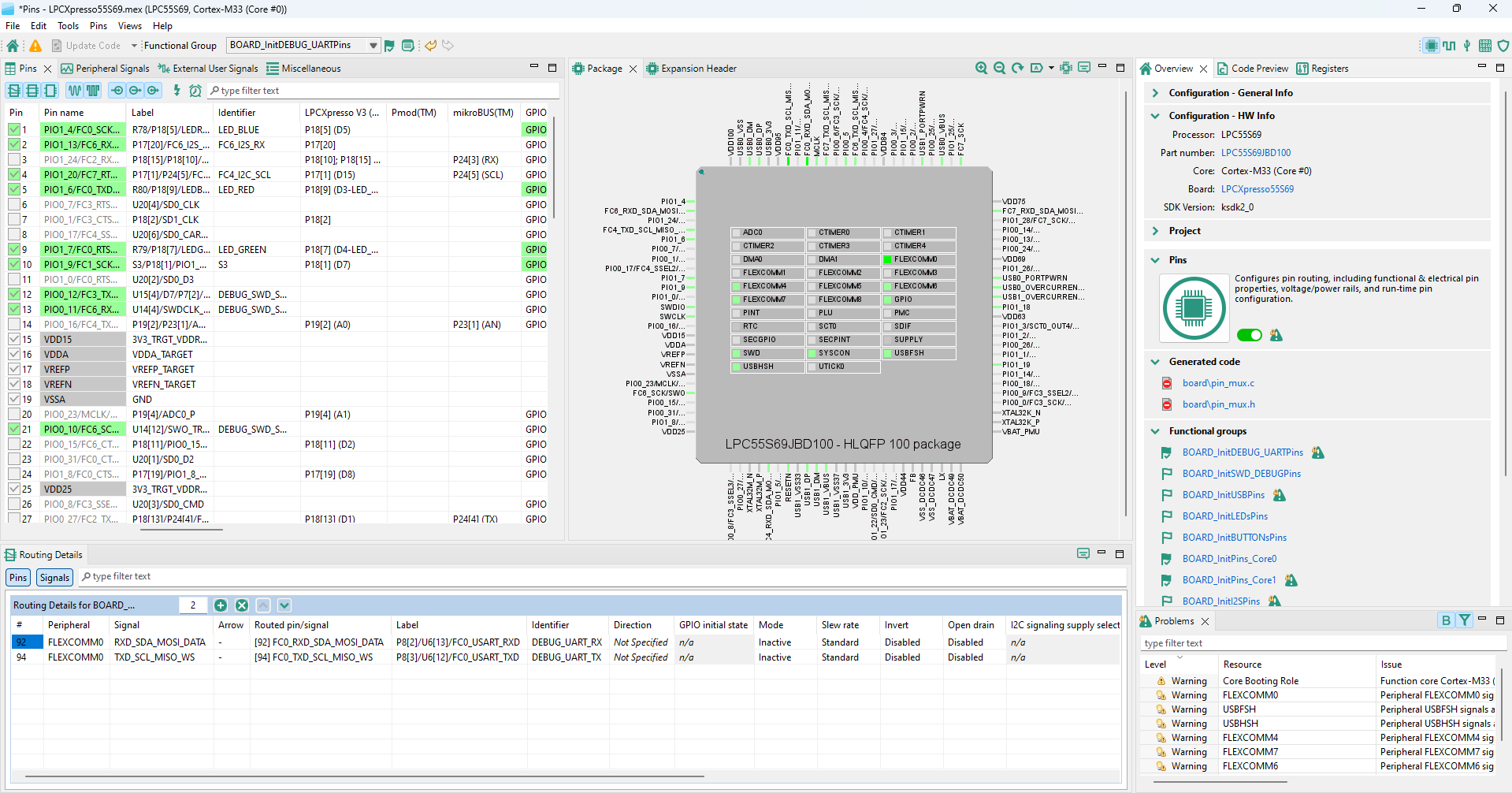
Pins Tool#
Clocks Tool#
In the Clocks tool, you can display and modify clock sources and outputs. Use the Clocks Table view to set clock sources and outputs, More advanced settings can be adjusted via the Clocks Diagram and Details views. Global settings of the clocking environment such as run modes, MCG modes, and SCG modes can be modified in the Clocks Table, Clocks Diagram, in Functional group properties, and in the Details view.
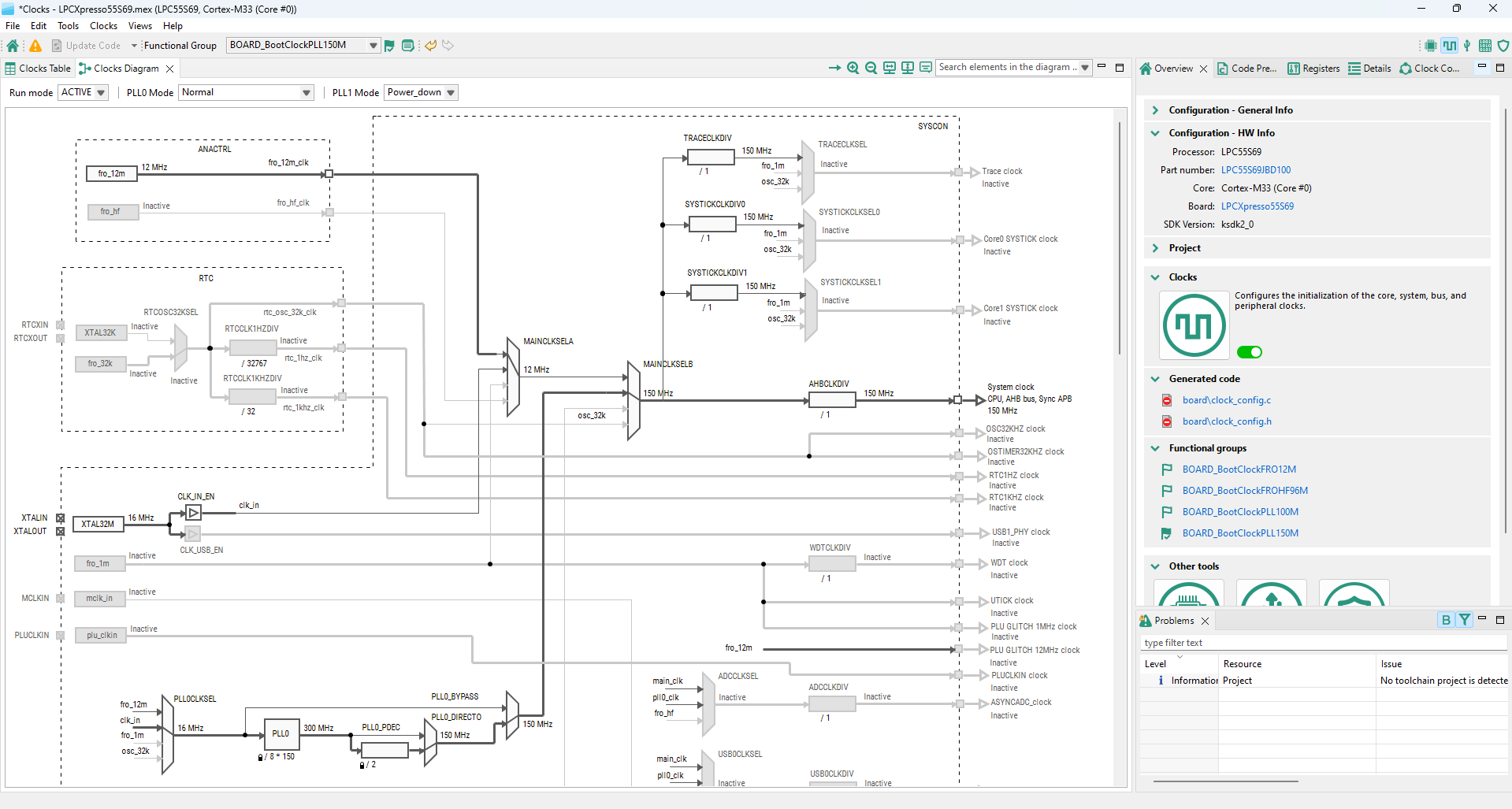
Clocks Tool#
Peripherals Tool#
In the Peripherals tool, you can configure the initialization of selected peripherals and generate code for them. In the Peripherals view, select the peripherals to configure and confirm the addition of the configuration component. Then you can select the mode of the peripheral and configure the settings within the settings editor.
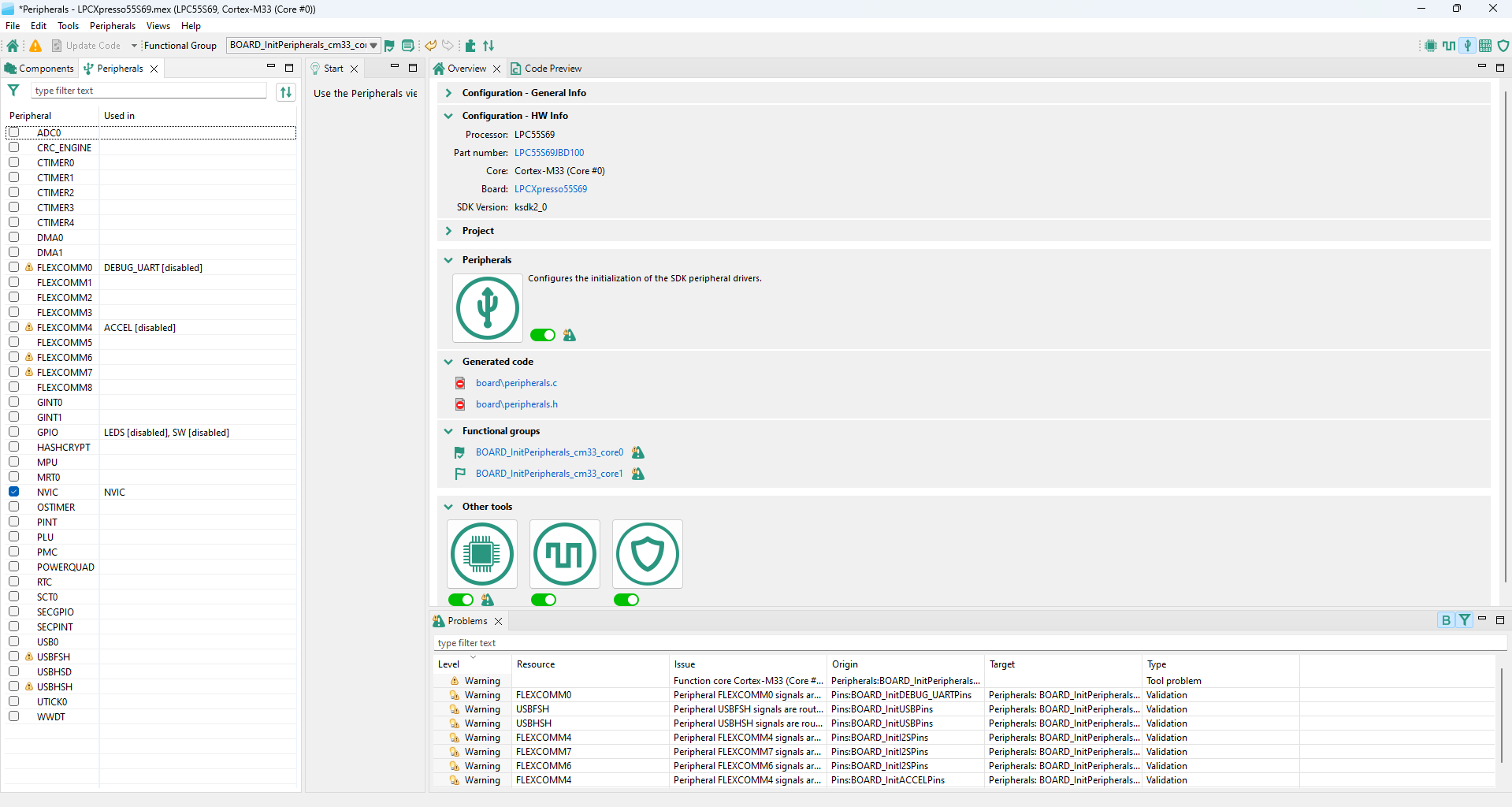
Peripherals Tool#
Device Configuration Tool#
The Device Configuration tool allows you to configure the initialization of memory interfaces of your hardware. Use the Device Configuration Data (DCD) view to create different types of commands and specify their sequence, define their address, values, sizes, and polls.
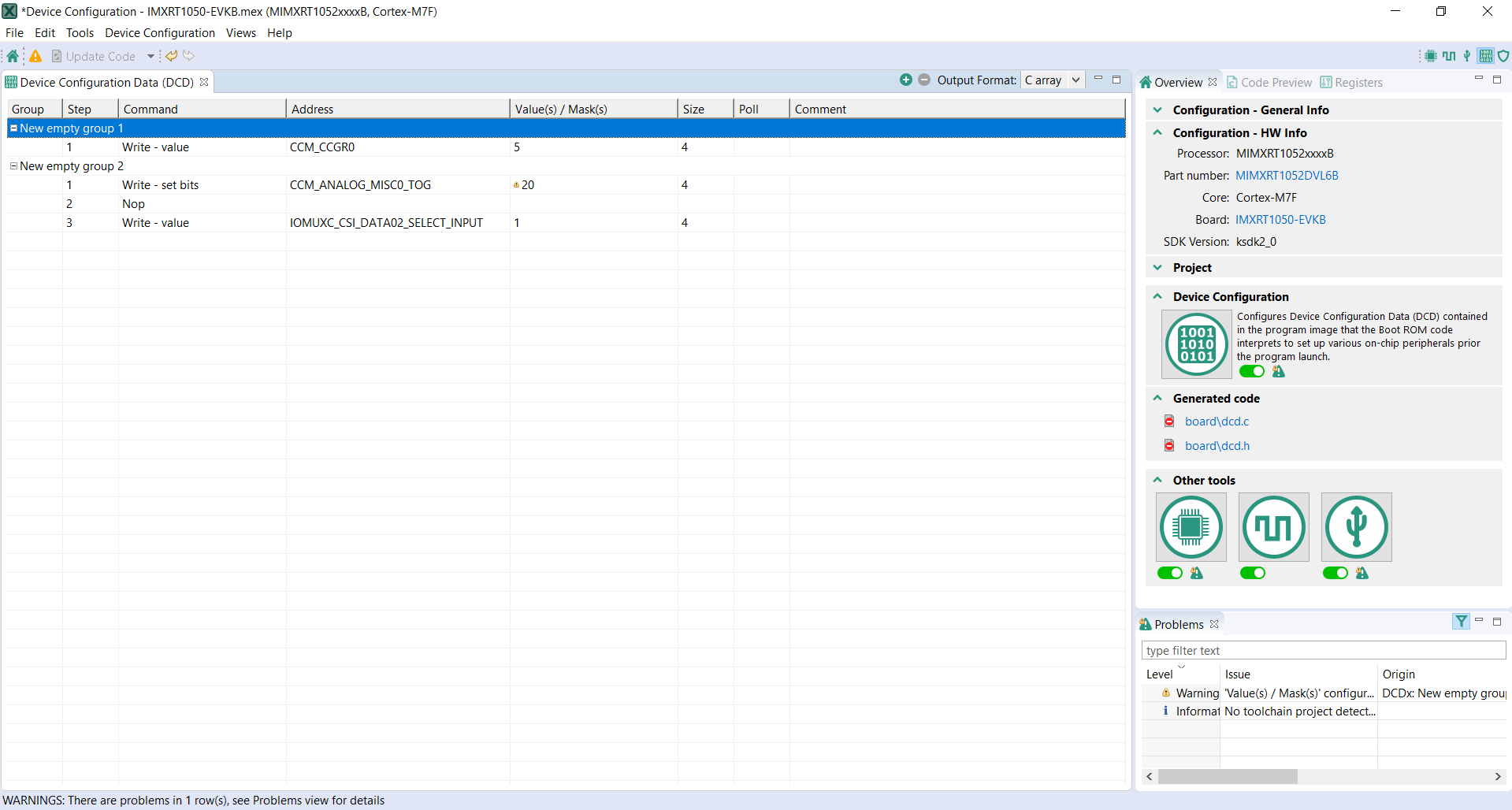
Device Configuration tool#
Trusted Execution Environment Tool#
In the Trusted Execution Environment, or TEE tool, you can configure the security policies of memory areas, bus masters, and peripherals, to isolate and safeguard sensitive areas of your application.
You can set the security policies of different parts of your application in the Security Access Configuration and its subviews, and review these policies in the Memory Attribution Map, Access Overview and Domains Overview views. Use the User Memory Regions view to create a convenient overview of memory regions and their security levels.
You can also view the registers handled by the TEE tool in the Registers view, and inspect the code in the Code Preview tool.
Note: For your configuration to come into effect, make sure you have enabled the relevant enable secure check option in the Miscellaneous subview of the Security Access Configuration view.
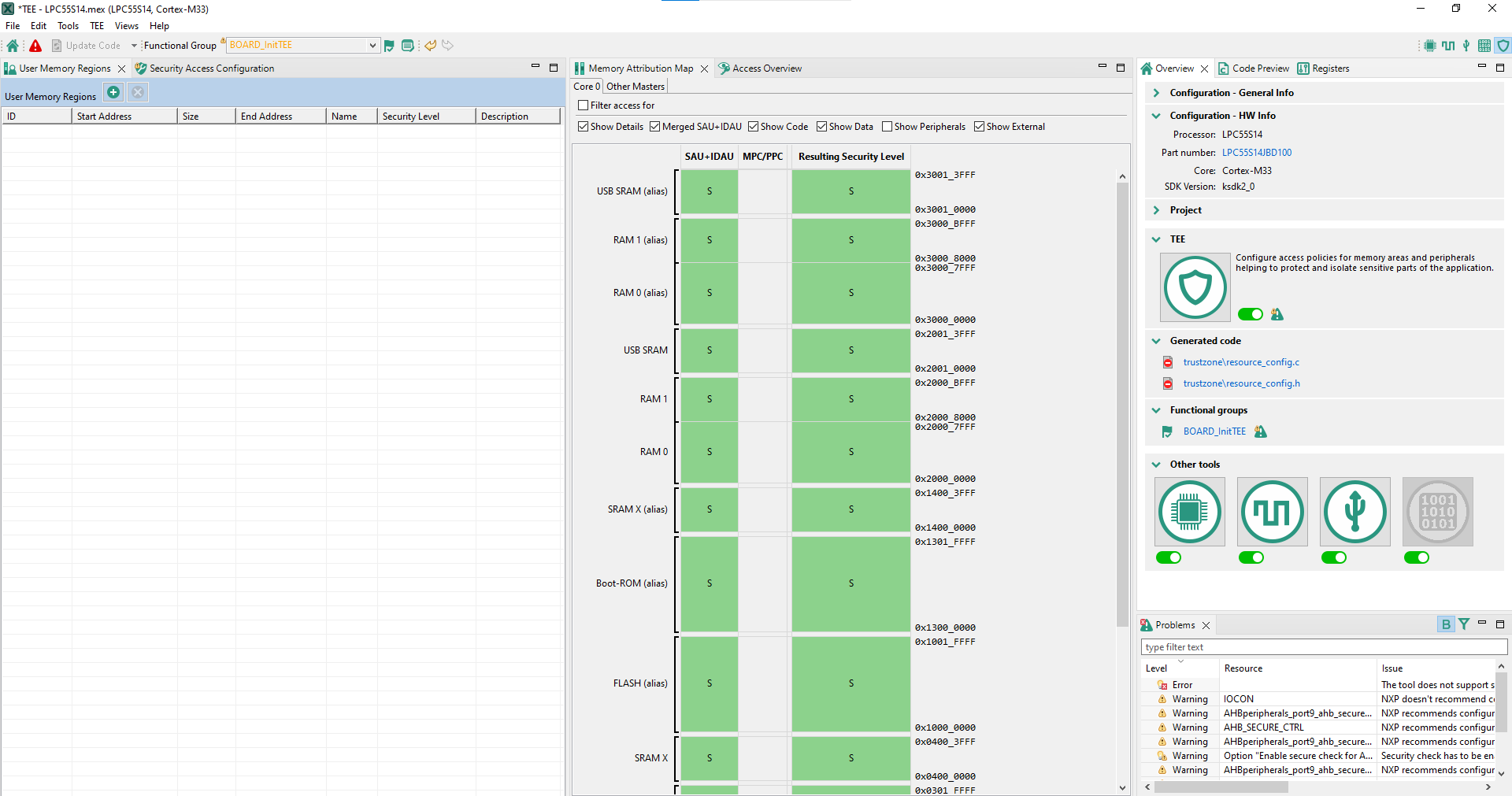
TEE tool user interface (SAU+IDAU)#
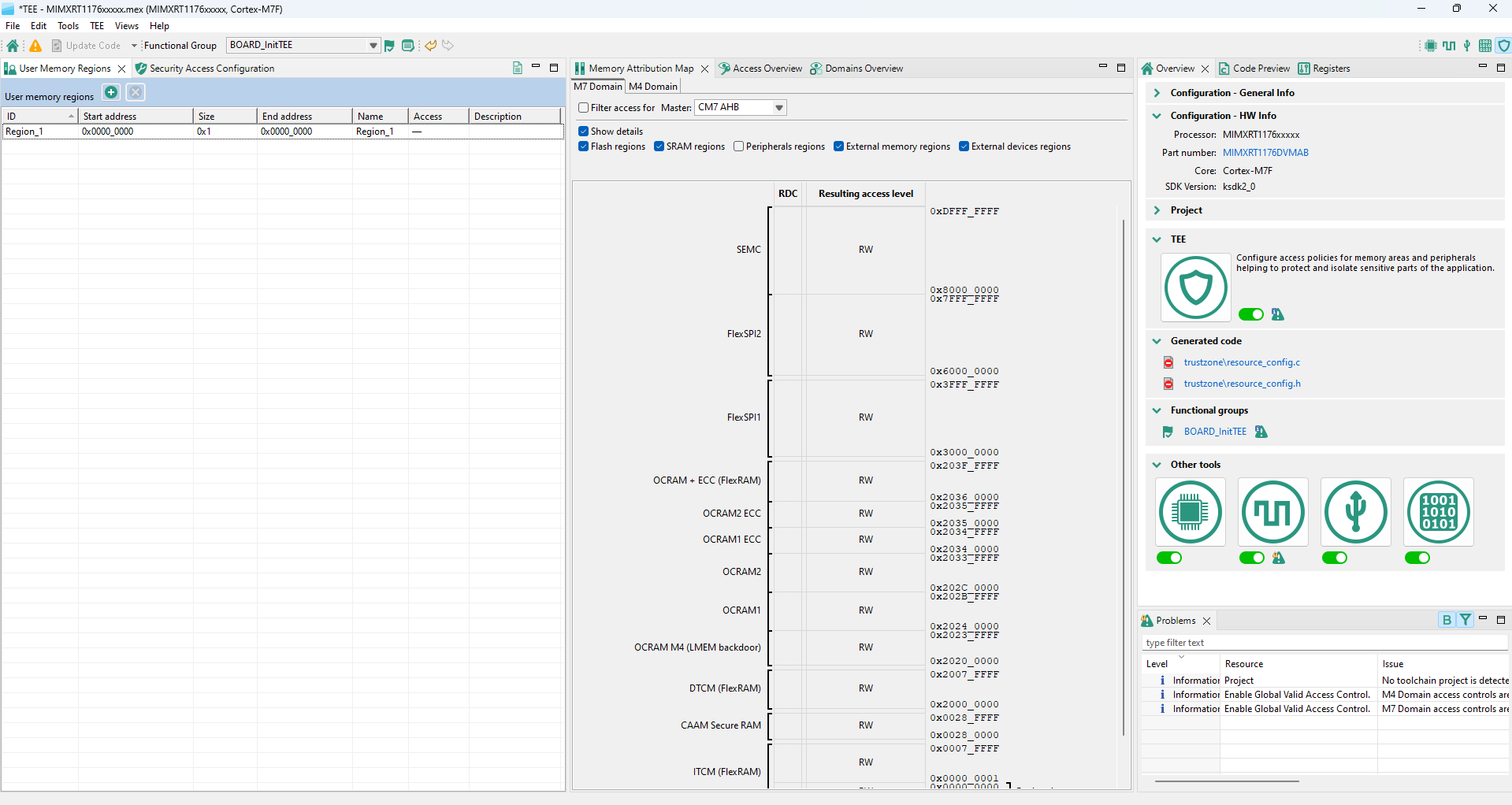
TEE tool user interface (RDC)#