
Introduction#
MCUXpresso Config Tools is a suite of evaluation and configuration tools that help you from initial evaluation to production software development. With MCUXpresso Config Tools, you can configure NXP Cortex-M processors and generate initialization of SDK drivers. The MCUXpresso Config Tools is intended for general use and aims to help hardware designers, software engineers, embedded engineers, and field application engineers (FAEs).
The tool is distributed free of charge. The installer for Windows, Linux, or Mac OS can be downloaded from https://www.nxp.com/.
To compile the generated code, an MCUXpresso SDK is required. You can download the SDK either from MCUXpresso SDK Builder or MCUXpresso SDK GitHub. The MCUXpresso SDK contains many example projects that can help you get started.
Use the link in the installation folder to start the tool. As the first step in the tool, you must create a configuration. The following use cases are described in this document:
Starting with SDK example or existing project - It is useful for new users to start with the MCUXpresso SDK example project for an NXP evaluation board or for users that already have a toolchain project with sources generated by the tool. Supported toolchains are Keil μVision, IAR Embedded Workbench, CodeWarrior, Arm GCC and MCUXpresso for Visual Studio Code/SDK West.
Starting with new configuration - It is useful to start with a new configuration for a custom board or with an existing toolchain project that does not contain any tool configuration yet.
Create a new configuration#
After starting the tool, you can create a new configuration or open an existing configuration from the Start development wizard. You can also create a new configuration by selecting File > New from the Menu bar, or open an existing configuration by selecting File > Open.
There are several options for creating a new configuration:
Create a new configuration and project based on SDK example
Create a new configuration based on existing toolchain project
Create a new configuration for Zephyr RTOS
Create a new standalone configuration for a processor, board or kit
If you start development for an NXP board or kit, we recommend starting by creating a configuration based on an MCUXpresso SDK example or by creating a new standalone configuration for a board or kit. Such configurations contain board-specific settings. If you select a new standalone configuration for a processor, the configuration will be empty. Use a standalone configuration to create a configuration that is not connected to any toolchain project.
After the new configuration is created, you can continue by importing an existing configuration from an MEX file. This is useful if you already have a configuration available or if you want to reuse a previous configuration. To import an existing configuration from an MEX file, select File > Import… > Import configuration (*.mex) from the Menu bar.
Cloning an SDK example#
You can create a configuration by cloning an SDK example project for IAR Embedded Workbench, Keil μVision, CodeWarrior Development Studio, and/or GCC ARM Embedded (command line). The resulting project contains all source files and libraries to build the project and can be easily customized, shared, or put under a control version system.
Note: The creation (cloning) of the projects based on the SDK examples will no longer be supported in the future releases of the MCUXpresso Config Tools. Instead, use the MCUXpresso SDK command line tools and west build system. For detailed documentation, see the MCUXpresso SDK Command Line Development documentation.
SDK example cloning is supported for MCUXpresso SDK 2.2 and higher.
Note: To be able to clone an SDK example or create a “hello_world” project, you must first download an SDK package. For more information about SDK packages offered by NXP Semiconductors, refer to the MCUXpresso Software Development Kit.
Note: If the server is unavailable, and device data is not cached, creating the project fails.
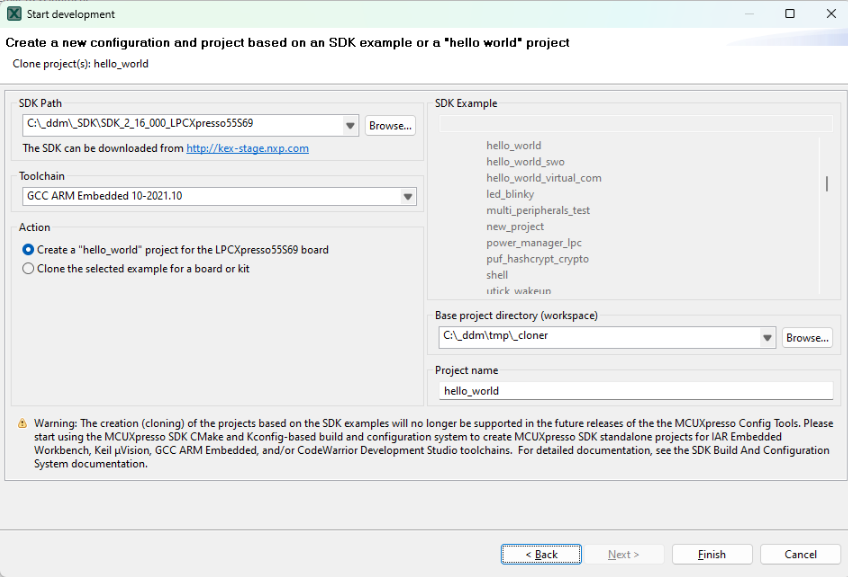
Cloning SDK#
To clone an SDK example, do the following:
In the Start development wizard, select Create a new configuration based on an SDK example or a “hello world” project. Alternatively, in the Menu bar, select File > New.
Click Next.
Specify the path to your locally saved SDK package.
Choose the toolchain that you want to create the project for.
Choose the SDK example that you want to clone.
Specify a base project directory to save your project to.
Specify the project name.
Click Finish.
You can also create a basic, minimally customized “hello_world” project without having to select an SDK example from the package. To create a “hello_world” project, do the following:
In the Start development wizard, select Create a new configuration based on an SDK example or a “hello world” project. Alternatively, in the Menu bar, select File > New.
Click Next.
Specify the path to your locally saved SDK package.
Choose the toolchain that you want to create the project for.
Select Create “hello_world”.
Specify a base project directory to save your project to.
Specify the project name.
Click Finish.
The Config Tools Overview window shows the details of the configuration and supported tools. Now, select a tool by clicking its icon.
Creating a new toolchain configuration#
You can create a configuration for an existing toolchain project. Once done, configuration files associated with the project are updated directly.
MCUXpresso Config Tools currently supports the following toolchains:
MCUXpresso for VS Code/SDK West
IAR Embedded Workbench
Keil MDK uVision
Arm GCC
CodeWarrior with SDK
Note: For proper functionality of Config Tools, it is required that the toolchain project originates from the SDK package downloaded from MCUXpresso SDK Builder, has been created using the cloning feature of Config Tools or has been created using MCUXpresso for VS Code and MCUXpresso SDK GitHub.
To create a configuration based on an existing IDE/Toolchain project, do the following:
In the Start development wizard, select the Create a new configuration based on an existing IDE/Toolchain project. Alternatively, in the Menu bar, select File > New.
Click Browse.
Select the project file and confirm by clicking OK.
Click Finish.
Creating a new toolchain configuration in MCUXpresso for VS Code#
MCUXpresso Config Tools is integrated with the MCUXpresso for Visual Studio Code extension for a seamless development experience.
MCUXpresso for VS Code supports the following:
Installation of the MCUXpresso Config Tools using the MCUXpresso Installer.
Open and load the configuration for the selected MCUXpresso for VS Code project in the MCUXpresso Config Tools.
Apply changes generated in MCUXpresso Config Tools in the MCUXpresso for VS Code project.
See Working with MCUXpresso Config Tools in the MCUXpresso for VS Code documentation for detailed guidelines.
Creating a new standalone configuration#
You can create a new configuration that is not part of any toolchain project.
You can later include this configuration in a project by saving the configuration (MEX) file in the toolchain project folder.
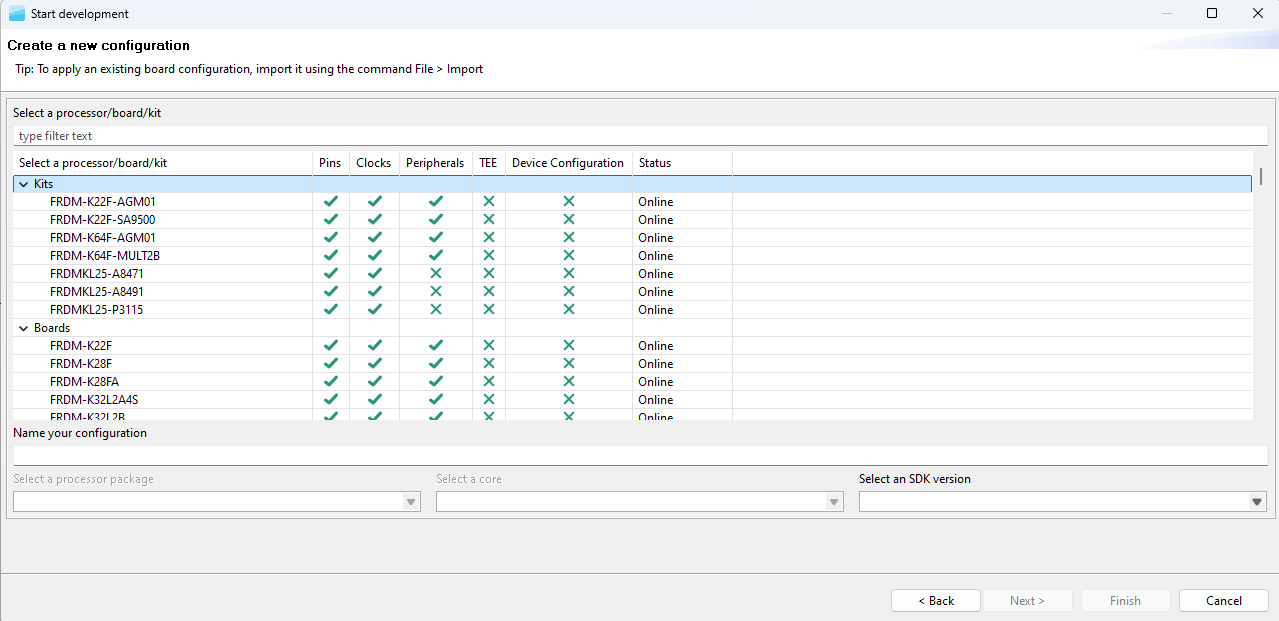
Creating a new configuration#
To create a standalone configuration, do the following:
In the Start development wizard select Create a new standalone configuration for processor, board, or kit. Alternatively, in the Menu bar, select File > New.
Click Next.
Select the processor, board, or kit from the list.
Note: If you are working offline, you will only see locally saved options. For more information, see the Working offline section of User Guide for MCUXpresso Config Tools (Desktop) (document GSMCUXCTUG)
Name your configuration. Optionally, you can select processor package, core, and SDK version.
Click Finish.