
Installation#
For the desktop setup executable, there is an installer available at https://mcuxpresso.nxp.com.
The installer file is about 290 MB in size and includes all the files required for the setup and does not need a connection to the Internet during installation. You can use this method for slow network connections or for installing the software on multiple machines.
Missing device information files are downloaded from the Internet when loading a configuration into the tool.
Installing on Windows#
A setup binary is available for Microsoft Windows:
64-bit version: Contains “x64” in the installer executable name.
Running a non-matching executable for a given host system, for example a 64-bit setup on a 32-bit system, will give an error message dialog.
To install MCUXpresso Config Tools as a desktop application on a local host:
Run the
MCUXpresso_Config_Tools_<version>_<architecture>.exe.The MCUXpresso Config Tools Setup wizard initiates.
Select the language in which you want to run the installer.
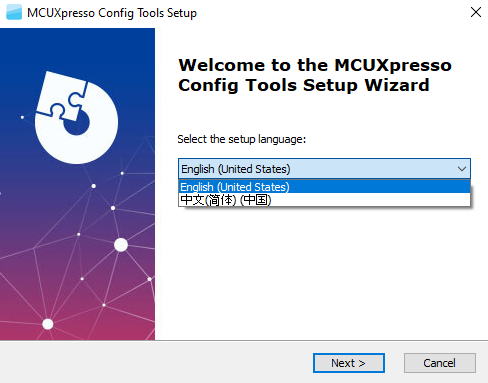
Select the Setup Language#
Click Next.
On the next page, click Next.
On the End-User License Agreement page of the wizard, select I accept the terms of the License Agreement.

Accepting the End-user License Agreement#
Click Next.
On the Select Installation Folder page of the wizard, select Browse and navigate to a destination folder you want the MCUXpresso Config Tools to install to.
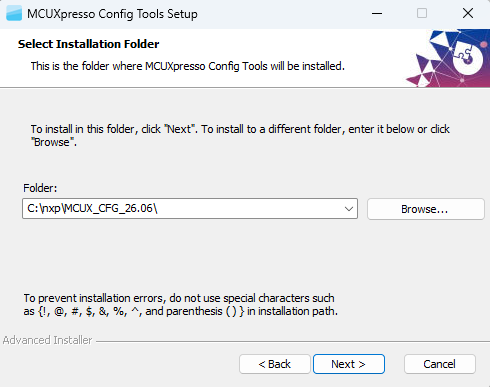
Select Installation Folder#
Click Next.
On the Configure Shortcuts page of the wizard, select the shortcuts you want to be created for MCUXpresso Config Tools.
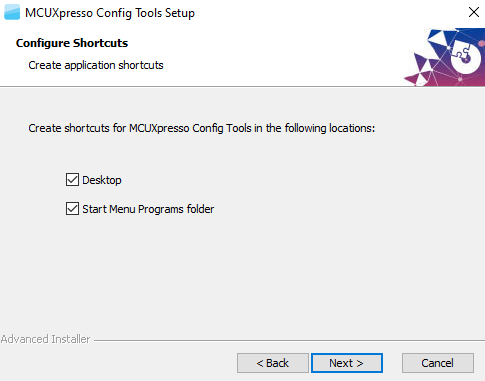
Configure Shortcuts#
Click Next.
On the Ready to Install page of the wizard, select Install.
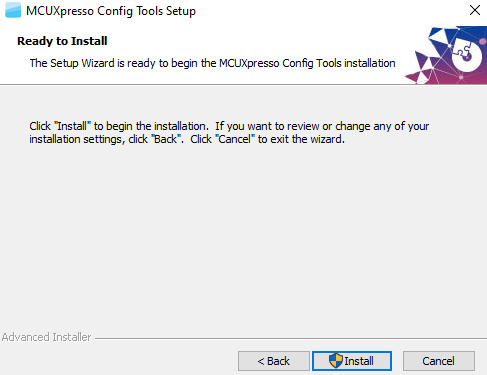
Ready to Install#
The setup will begin the installation.
Note: If you want to review or change any of your installation settings, click Back. Click Cancel to exit the wizard.
The installer prompts you when the installation completes.
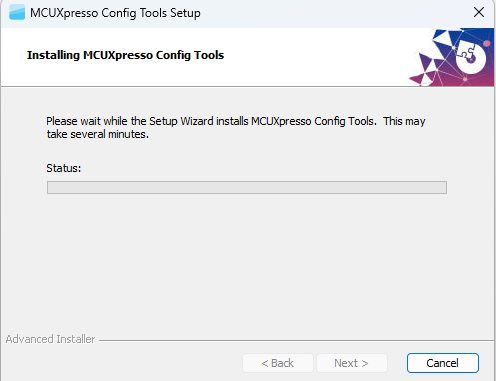
Installing MCUXpresso Config Tools#
Click Finish to close and exit the setup wizard.
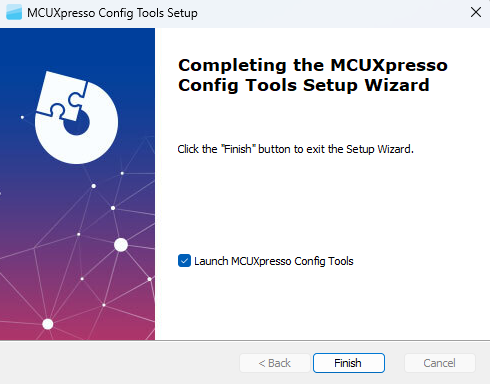
Complete installation#
To start using the MCUXpresso Config Tools, run the tool from the shortcut on the desktop or from the Start menu. You can also navigate to the product installation folder\bin\folder and launch the tools.exe or launch the shortcut in the product installation folder.
Installing on Mac#
To install MCUXpresso Config Tools as a desktop application on a local host:
Click the
MCUXpresso_Config_Tools_<version>_<architecture>.pkg.The Install MCUXpresso Config Tools setup initiates and the Introduction page appears.
Note: You may receive an error when trying to open the MacOS installer. To avoid it, manually select the option Mac App Store and identified developers from the Security & Privacy menu.
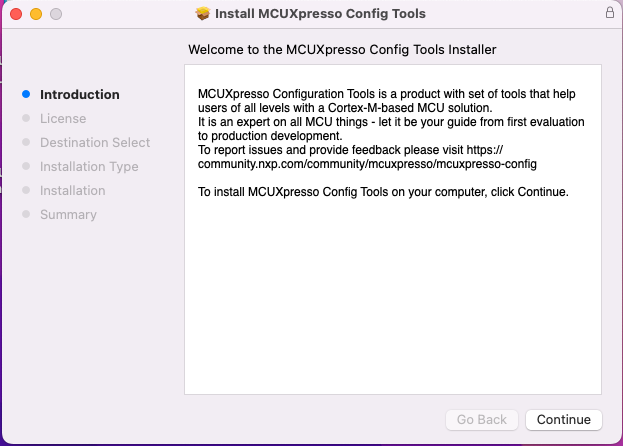
Introduction#
Click Continue.
The License page appears.

License#
Note: To install MCUXpresso Config Tools, agree to the terms of the software license agreement.
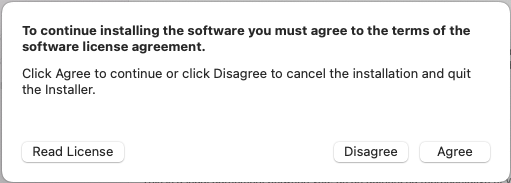
Software license agreement#
Click Continue.
The Installation Type page appears.
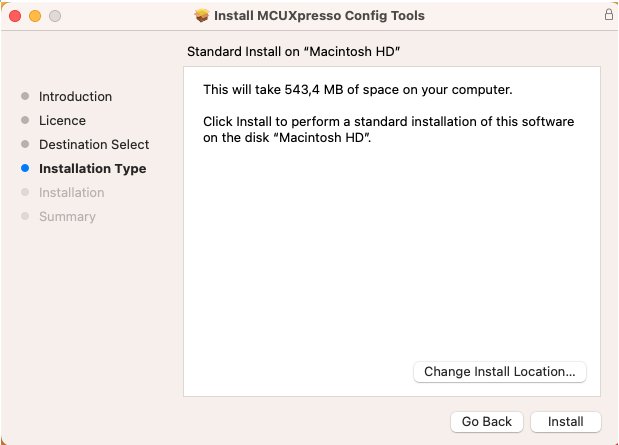
Installation Type#
Click Install.
The Installation page appears.
Type in your login credentials to continue with the installation.
Click Install Software.
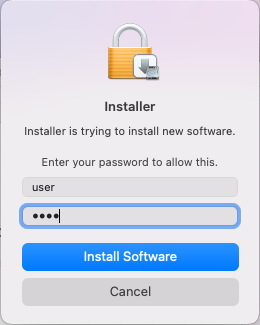
Install Software#
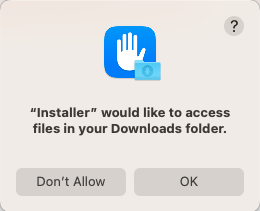
Install Software#
Click Continue.
The Summary page prompts that the installation was successfully completed.
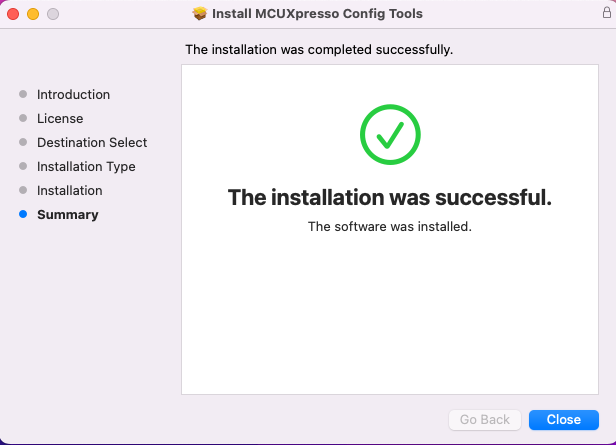
Summary#
Click Close to exit the installation wizard.
Installing on Linux#
This section provides the details of installation of MCUXpresso Configuration Tools on Linux.
Installing using command line#
 chmod +x ./<name><version>-<pkg_revision><architecture>.deb.bin
$ sudo ./<name>_<version>-<pkg_revision>_<architecture>.deb.bin
(Reading database ... .... files and directories currently installed .)
Preparing to replace <name> <version> (using
<name>_<version>-<pkg_revision>_<architecture>.deb) ...
Unpacking replacement <name> ...
Setting up <name> (<version>) ...
This installs the tools to the default location (/opt/nxp/<default_path>).
Uninstalling using command line#
In the Terminal, you can get the list of MCUX Config Tools with the package names.
dpkg --list "mcuxpresso-config-tools*"
Desired=Unknown/Install/Remove/Purge/Hold
| Status=Not/Inst/Conf-files/Unpacked/halF-conf/Half-inst/trig-aWait/Trig-pend
|/ Err?=(none)/Reinst-required (Status,Err: uppercase=bad)
||/ Name                        Version      Architecture Description
+++-===========================-============-============-=================================
ii  mcuxpresso-config-tools-v16 16.0         amd64        MCUXpresso Config Tools
Now, the desired version can be uninstalled:
sudo dpkg -r mcuxpresso-config-tools-v16