Working with MCUXpresso Config Tools
The MCUXpresso Config Tools is a suite of evaluation and configuration tools that helps you from initial evaluation to production software development. The MCUXpresso for VS Code extension integrates with the MCUXpresso Config Tools for a seamless development experience.
Install MCUXpresso Config Tools
You can install the standalone MCUXpresso Config Tools using the MCUXpresso Installer.
In MCUXpresso for VS Code extension, navigate to **Quickstart Panel** → Open MCUXpresso Installer.
Select and install MCUXpresso Configuration Tools.
After installation, you can use MCUXpresso Config Tools from the MCUXpresso for VS Code extension.
Note: For integration with MCUXpresso for VS Code extension, the MCUXpresso Config Tools version must be 24.12 or higher.
Use MCUXpresso Config Tools
Open MCUXpresso for VS Code extension, right click on the project you want to configure using MCUXpresso Config Tools and choose “Open with MCUXpresso Config Tools”.
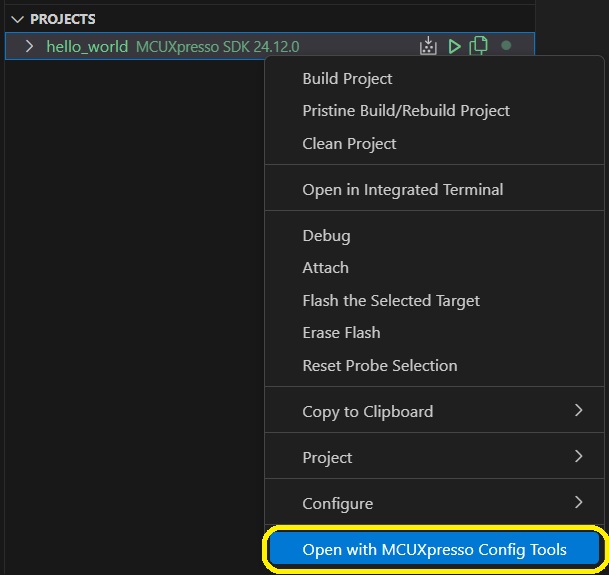
If the MCUXpresso Config Tools has been installed in a location different than the default one, you will be asked to provide the installation path.

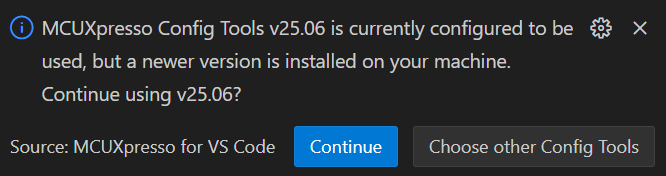
The chosen MCUXpresso Config Tools path is set in MCUXpresso for VS Code extension settings, and it is used by default. When a newer MCUXpresso Config Tools version is found in the local file system, you will be notified with the option of updating the MCUXpresso Config Tools version in settings.
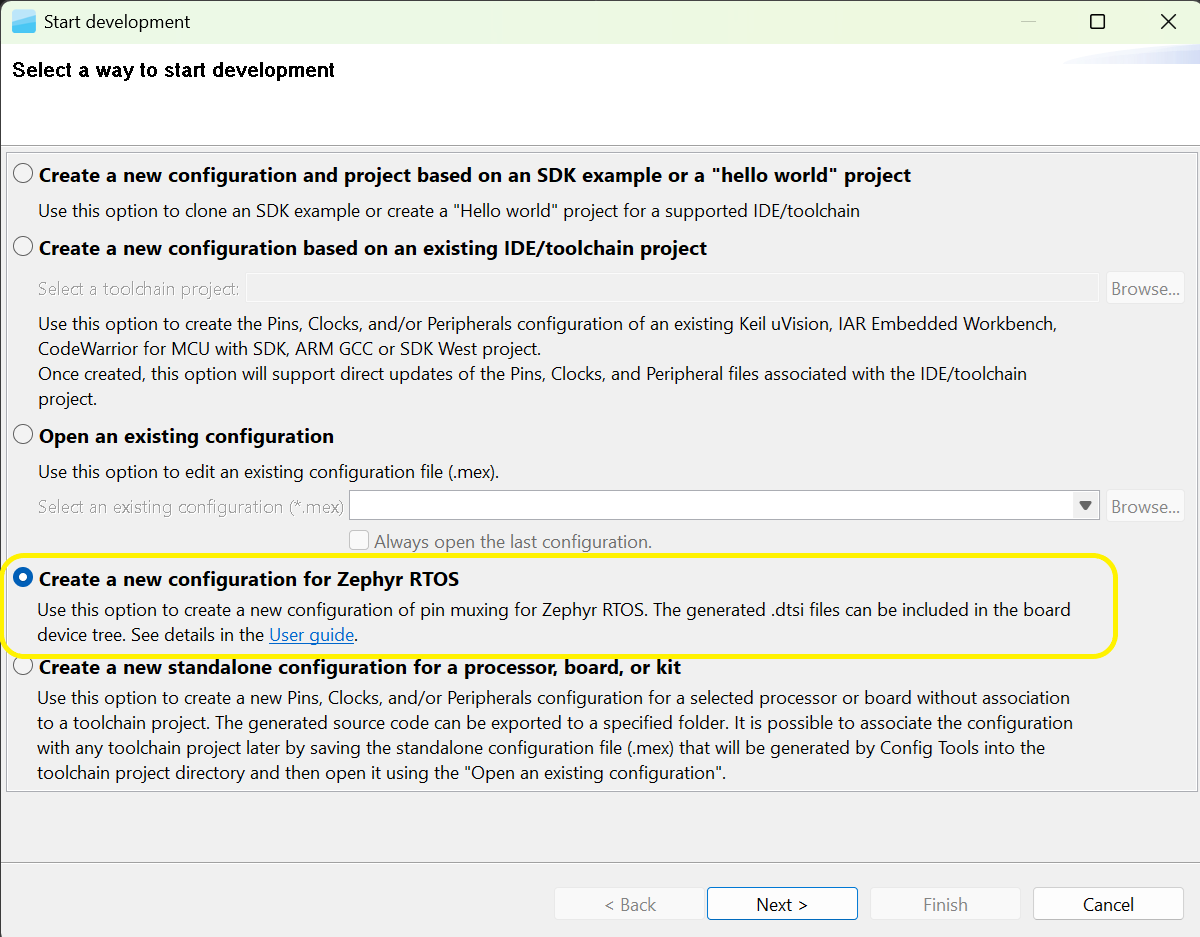
MCUXpresso Config Tools will open and load the configuration for the selected project.
For Zephyr project the MCUXpresso Config Tools will open with the choice of creating a new configuration for Zephyr RTOS.
For further details on using the MCUXpresso Config Tools please refer to the Desktop MCUXpresso Config Tools User Guide
MCUXpresso SDK 25.12 (or newer) projects
Common workflow:
Use the MCUXpresso for VS Code extension to create (Create project) or import project.
Right click on the project and choose “Open with MCUXpresso Config Tools”. Compatibility version checks between MCUXpresso for VSCode extension, MCUXpresso SDK and MCUXpresso Config Tools are performed at this point:
The following minimum versions are required:
MCUXpresso for VS Code extension minimum version 25.12
MCUXpresso Config Tools minimum version 25.12
MCUXpresso SDK minimum version 25.12
Without these minimum requirements, MCUXpresso Config Tools opens without loading a corresponding configuration for the project.
Do the configuration-specific changes inside MCUXpresso Config Tools.
Generate/update code in MCUXpresso Config Tools. Note the message in MCUXpresso Config Tools that redirects you to the MCUXpresso for VS Code extension, then proceed to the next steps.
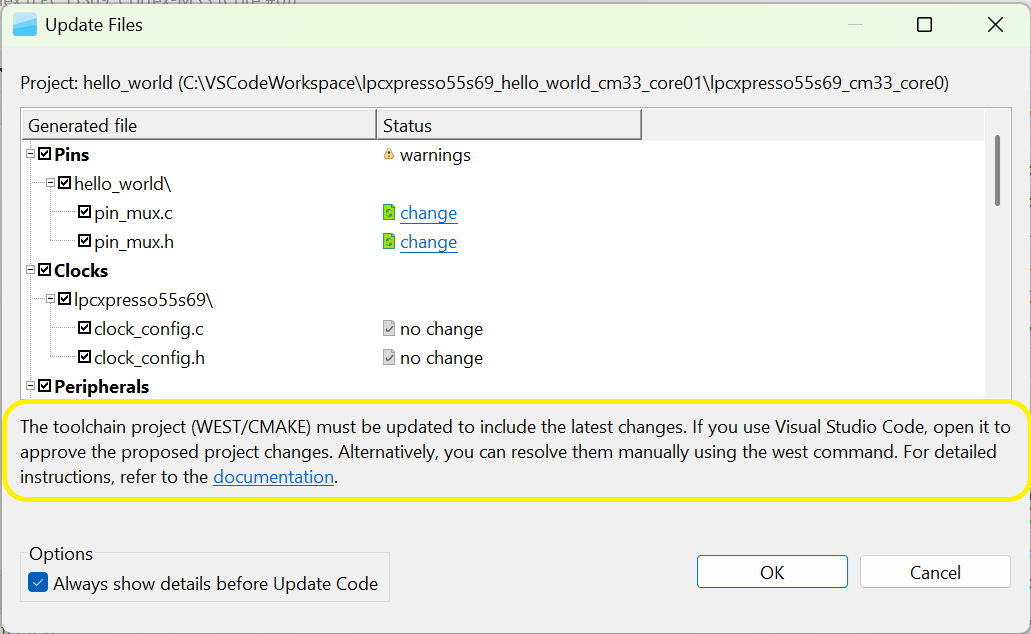
Go to MCUXpresso for VS Code extension, note that it automatically detects changes made in MCUXpresso Config Tools and prompts you to apply those changes. Even when updates have been done multiple times in MCUXpresso Config Tools, only one action of “Apply changes” is needed in MCUXpresso for VS Code extension. By default, all needed changes are checked in the “Apply changes” checkbox, but you have the option of applying partial changes.
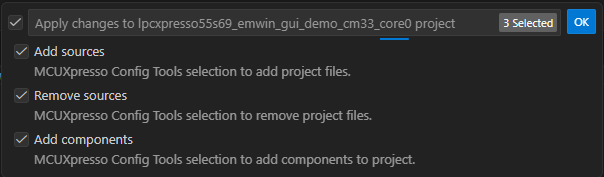
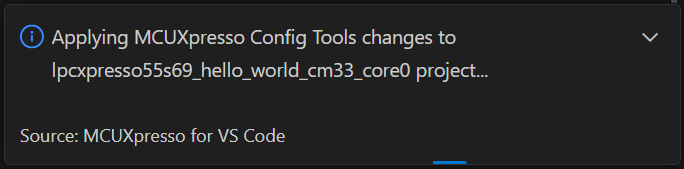
Press OK in the quick pick to apply the selected changes. Progress message is visible until the action has finished.
If configuration changes are available but have not yet been applied, you can also apply them using the option in the project context menu. Right‑click the project and select “Apply MCUXpresso Config Tools Changes”. This action opens the quick‑pick dialog displaying the list of available changes.
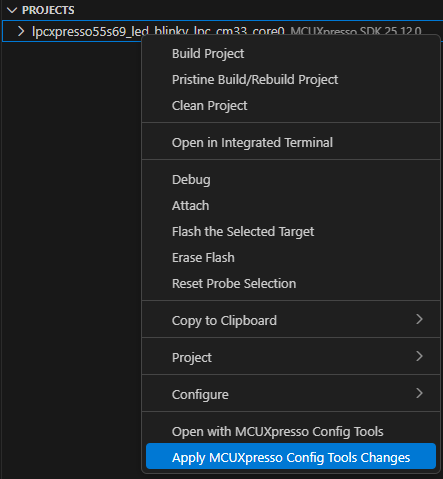
Note: “Apply MCUXpresso Config Tools Changes” option is only shown when unapplied changes exist. If no changes are available, the menu entry will not appear in the project context menu.