Multicore Examples on LPC55S6x and MCUXpresso SDK 24.12
The following are required to follow this chapter:
MCUXpresso for VS Code v1.0 or later
LPCXpresso 55S69 EVK development board
MCUXpresso SDK Github repository 25.03 or later
Overview
The LPC55xx series of MCUs contain a main or ‘Primary’ Cortex M33 core, plus an optional ‘Secondary’ Cortex M33 core (with reduced functionality).
On devices with both cores implemented, after a power-on or Reset, the Primary core starts executing, but the Secondary core is held in reset (i.e its code does not start to execute). Code running on the Primary core is then responsible for releasing the Secondary core from reset; hence the names Primary and Secondary. In reality Primary and Secondary only applies to the booting process; after boot, your application may treat either of the cores as the Primary or Secondary.
MCUXpresso for VS Code provides highly flexible support for creating and debugging LPC55xx applications, for both single core and multicore systems. This article details the process of creating and debugging such multicore applications. Note that it is assumed that you are familiar with standard MCUXpresso for VS Code behavior, such as downloading and installing an appropriate MCUXpresso SDK for an MCU, importing examples from the SDK. For more details of these and other operations, please consult the MCUXpresso for VS Code User Guide. The User Guide also provides more general information on multicore projects and debugging.
Importing Multicore Example Project
As a prerequisite, use MCUXpresso Installer to install ARM GNU toolchain component plus a Debug Probe software dedicated for your available debug probe (LinkServer, SEGGER J-Link, or PEmicro).
From the Quickstart view, select the ‘Import Example from Repository’, then select the imported repository, toolchain, and the LPCXpresso55S69 board.
On “Choose a template” section, type “multicore”, the filter will display only the examples containing the word “multicore” and select either of the Hello World projects.
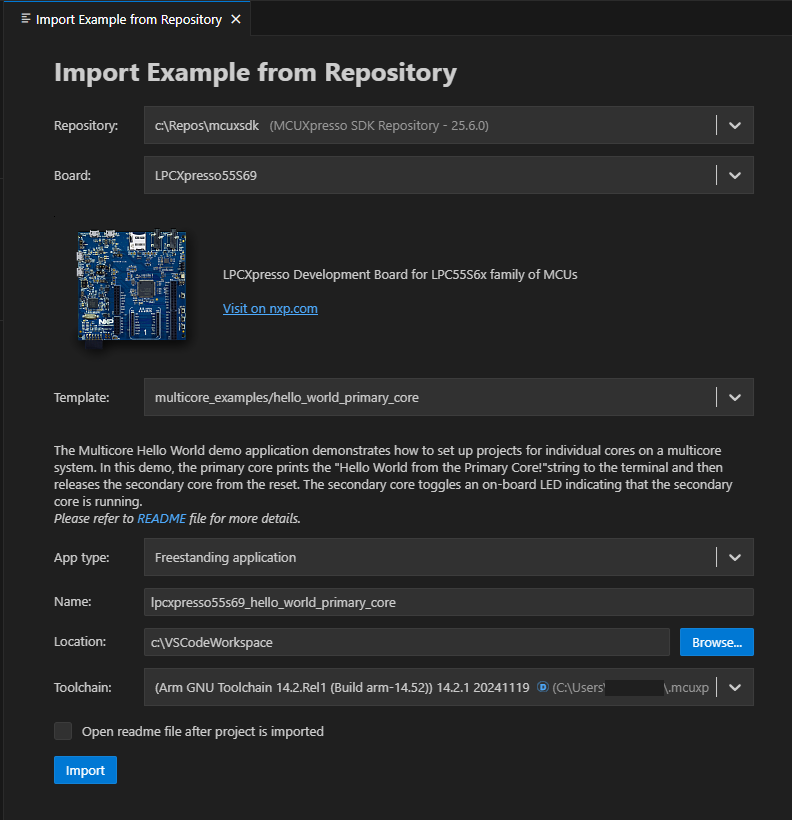
After selecting the appropriate multicore example project, click “Import” to create the project in your workspace. The import process will automatically add the project in PROJECTS view and configure the necessary settings for a multicore application targeting the LPCXpresso 55S69 EVK.
Notes about Multicore project contents and configuration
There are a few points to note about the project that has been created by the above steps.
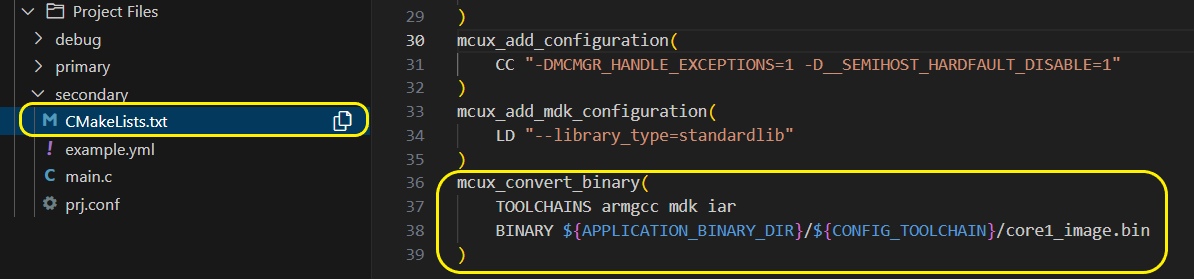
First of all, the main() routine in the Primary project contains a code sequence which will copy the Secondary core image from flash memory to the target RAM memory then it will boot the Secondary core application.
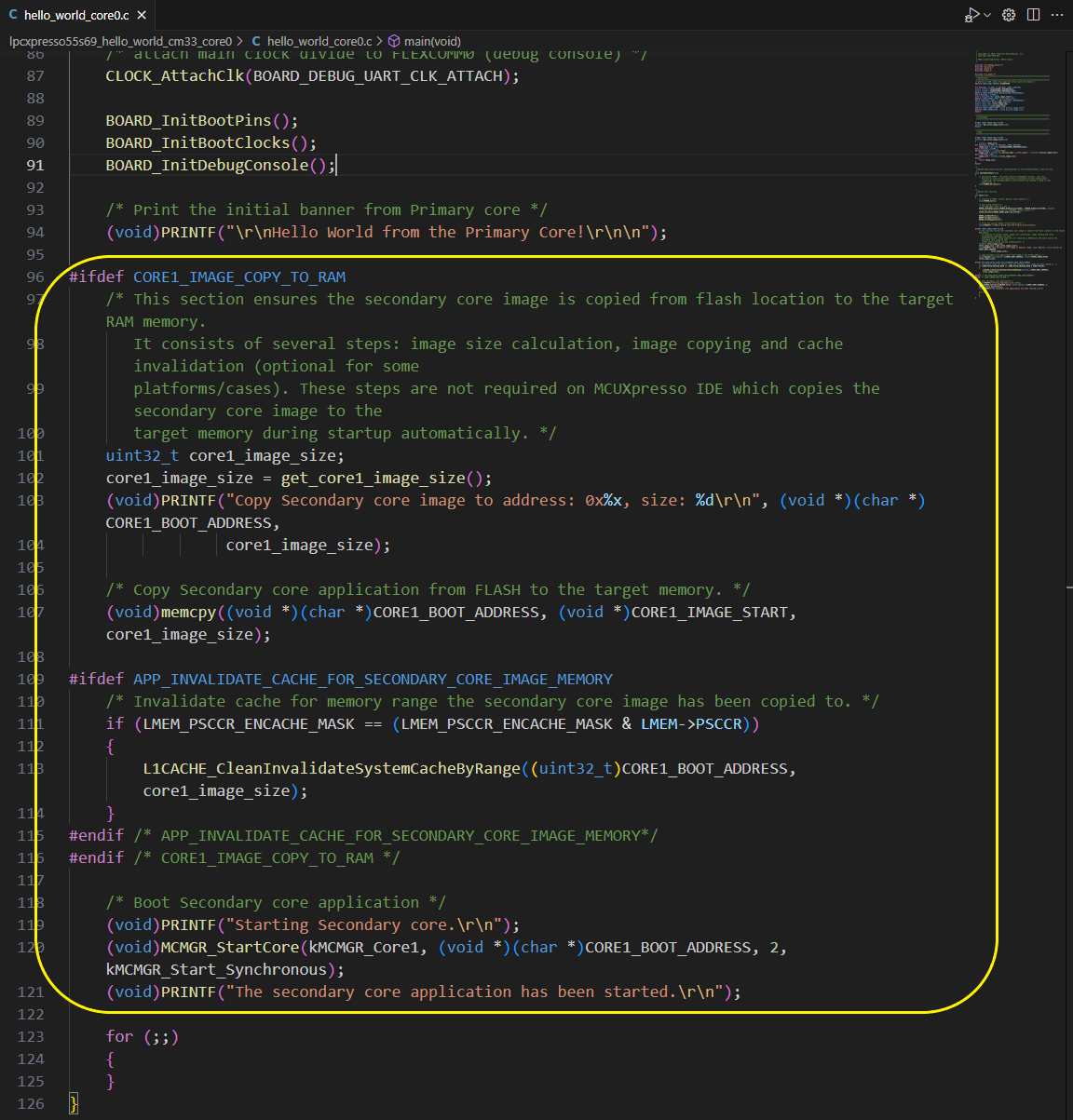
The Secondary core image is loaded as binary file:
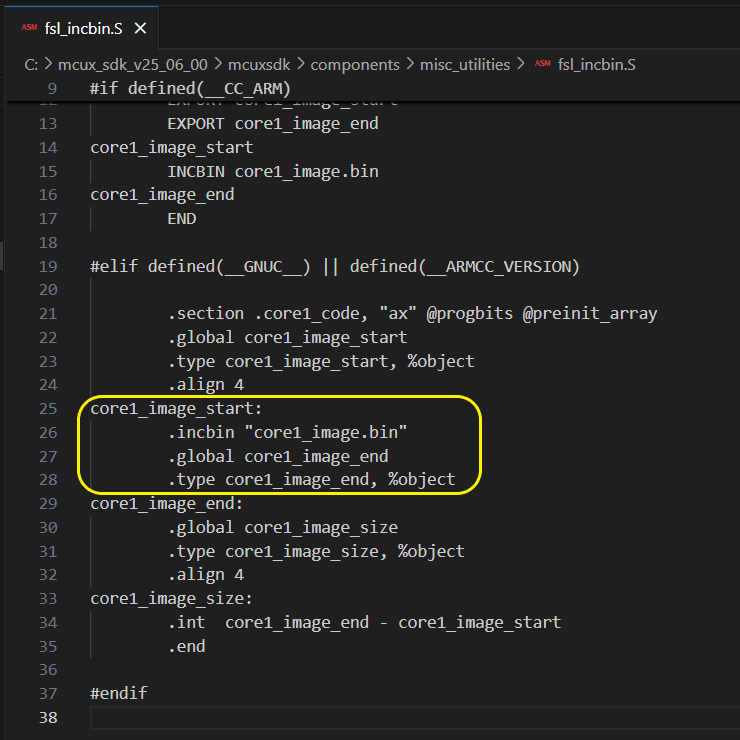
, generated by the Secondary core post build step:
Building a multicore application
The simplest way to build a multicore project is to trigger a build using the “Build” option from the project’s toolbar.

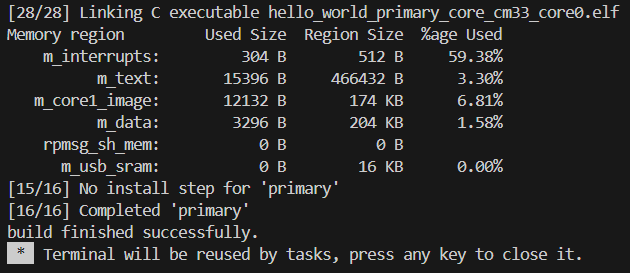
Since the application spans multiple domains - with one for the primary core and another for the secondary core - the build process starts with compiling the secondary core’s code. Once completed, the primary core’s code is built, embedding a copy of the secondary project’s image into the final image produced for the primary project, as illustrated above.
Upon completion of the build process, the executable will be generated, and an exit code of 0 will be displayed in the Output console, indicating a successful build.
Debugging a multicore application
Having built your simple multicore application, you can now debug it.
Note: In the debug example below we are going to use the on-board “LPC-Link2” debug probe on the LPCXpresso55S69 board. However, the details are basically the same if using a standalone “LPC-Link2” debug probe. We are not going to cover the use of a PEmicro or SEGGER J-Link probe in this article. General information on using these probes can be found on the wiki documentation.
First of all, start a debug session for primary domain (core) using the Debug option on the project’s toolbar.
Once in debug, the core #0 execution will stop at main.
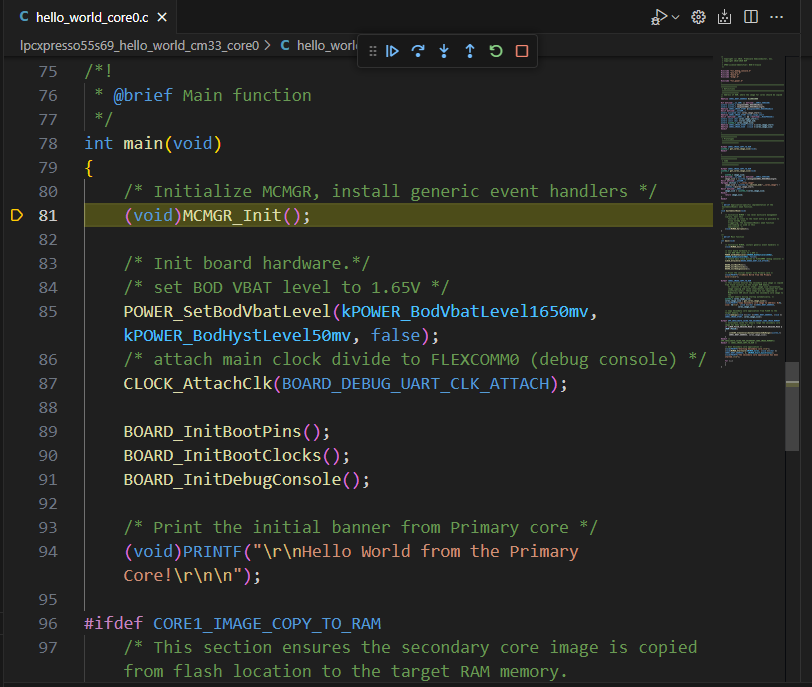
Since the core #0 is responsible to initialize the core #1, you need to start execute the core #0 application so select “Continue” from debug toolbar, allow 1-2 seconds for execution then press again in order to stop the execution.

Now, it is expected that core #1 is initialized.
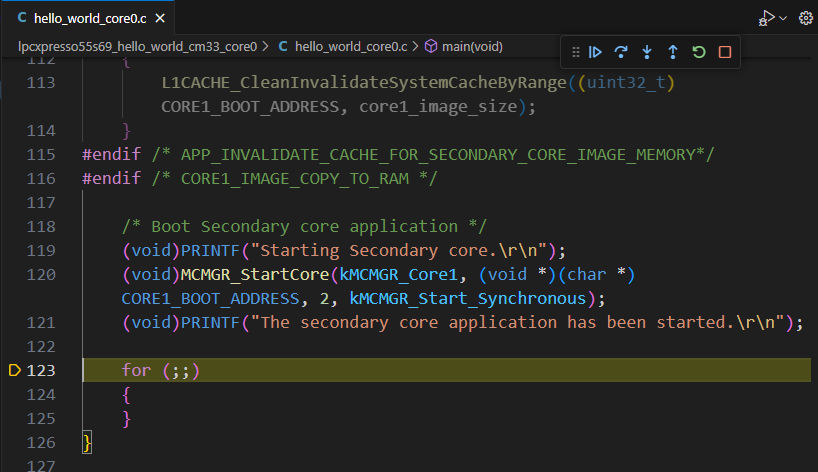
At this point, expand Domains node from PROJECTS view and use Debug option to start the debug session for the secondary core.
Note: For multicore imported projects, the debug for the Secondary core will only attach to the second core, since it is supposed no additional download is needed.
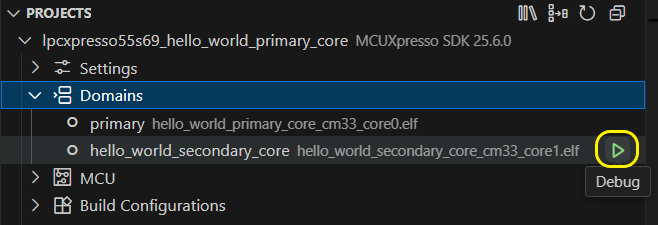
Once the second debug session started, basically, in this moment more than a single debug session is available in VS Code. This is marked by the debug toolbar having now a debug session selector.

Selecting one entry from the list will switch the available debug context to that debug session. The two debug sessions and their execution call stack status can be also visualized in the Call Stack view in the Run and Debug view. Also, selecting a call from that view will switch to the desired core debug context.
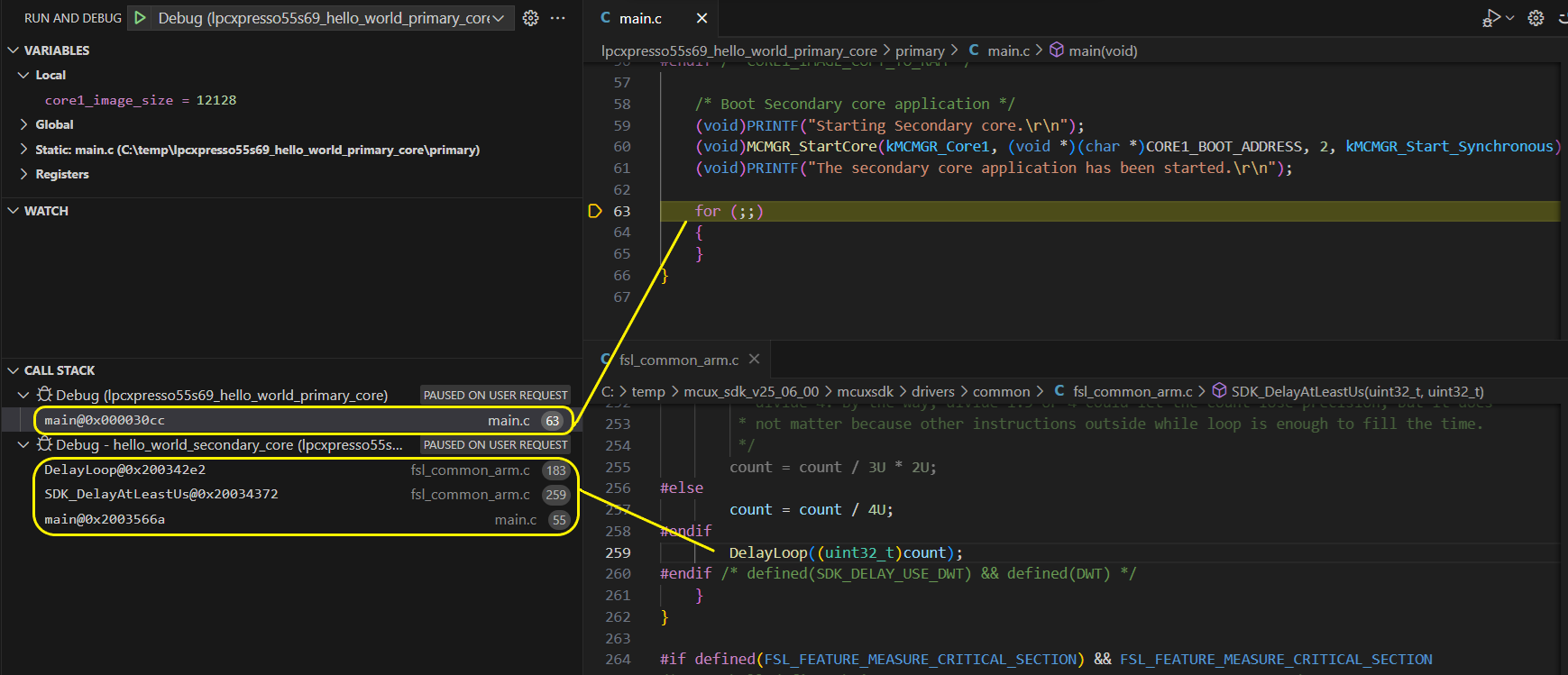
Also, all the other debug views (Variables, Registers, Peripherals, etc.) will change their content according with the selected debug context.
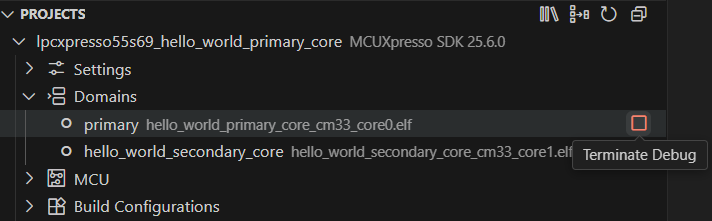
After starting a debug session, the “Terminate Debug” button can be used to terminate all debug sessions associated with that project.
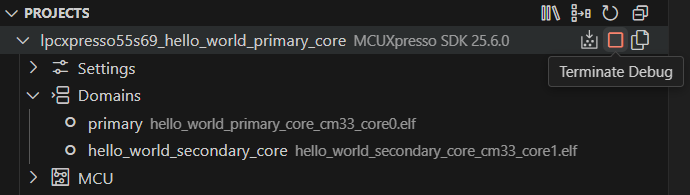
You can terminate a debug session for a certain domain using the dedicated button.