Dependency Installation CLI
The MCUXpresso Installer tool offers command-line support for installing available tools or checking the status of installed ones. The MCUXpressoInstallerCLI executable is included alongside the GUI executable on all operating systems.
Help command
-h, –helpDisplay help for commands.
Check updates command
–check-updatesCheck if MCUXpresso Installer has updates.
Version command
-v, –versionDisplay the application version.
Install command
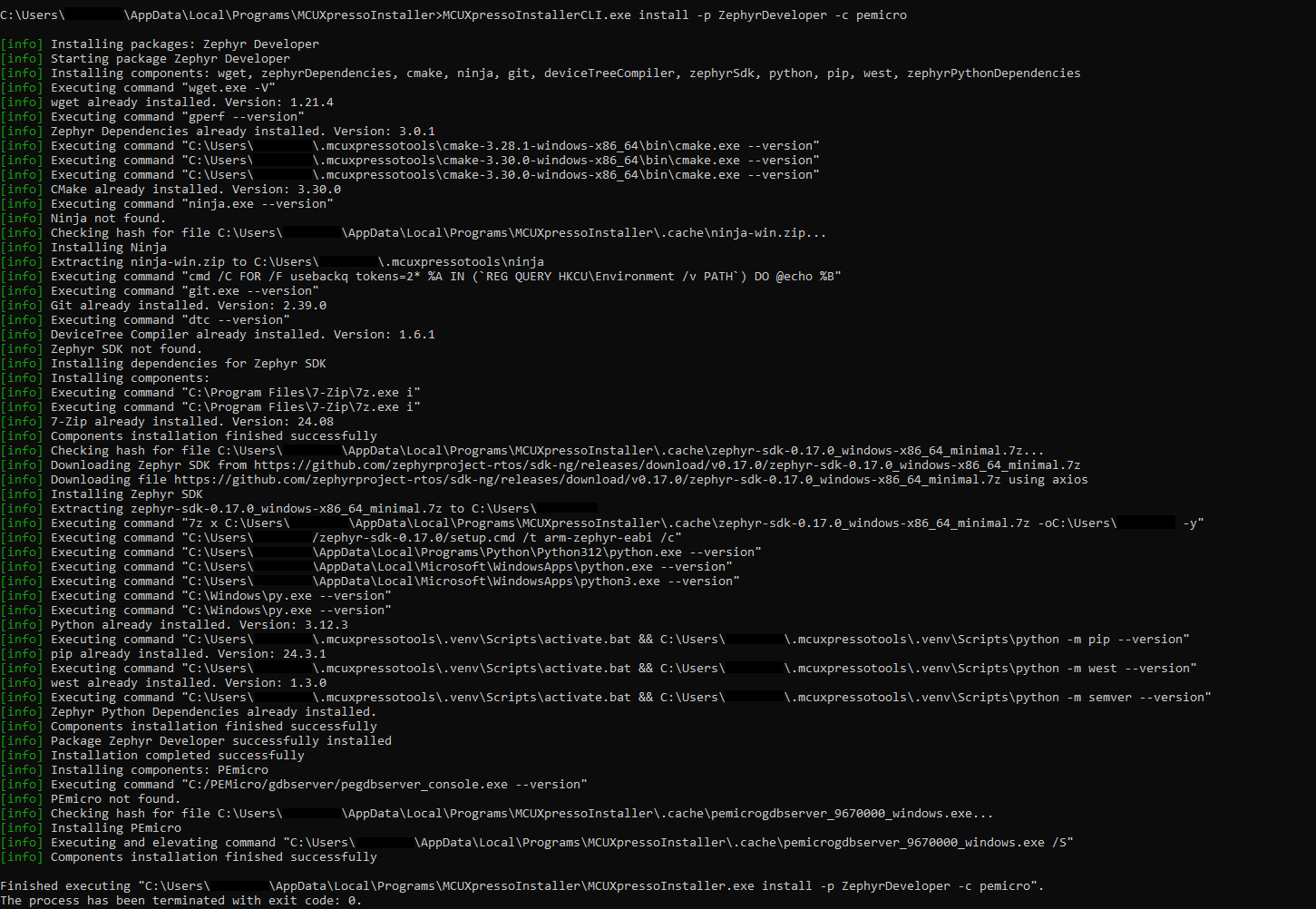
install | iUsed to install packages and components from MCUXpresso Installer.
Options:
-h, –help- display help for install command. Provides details about options and the choices for arguments.
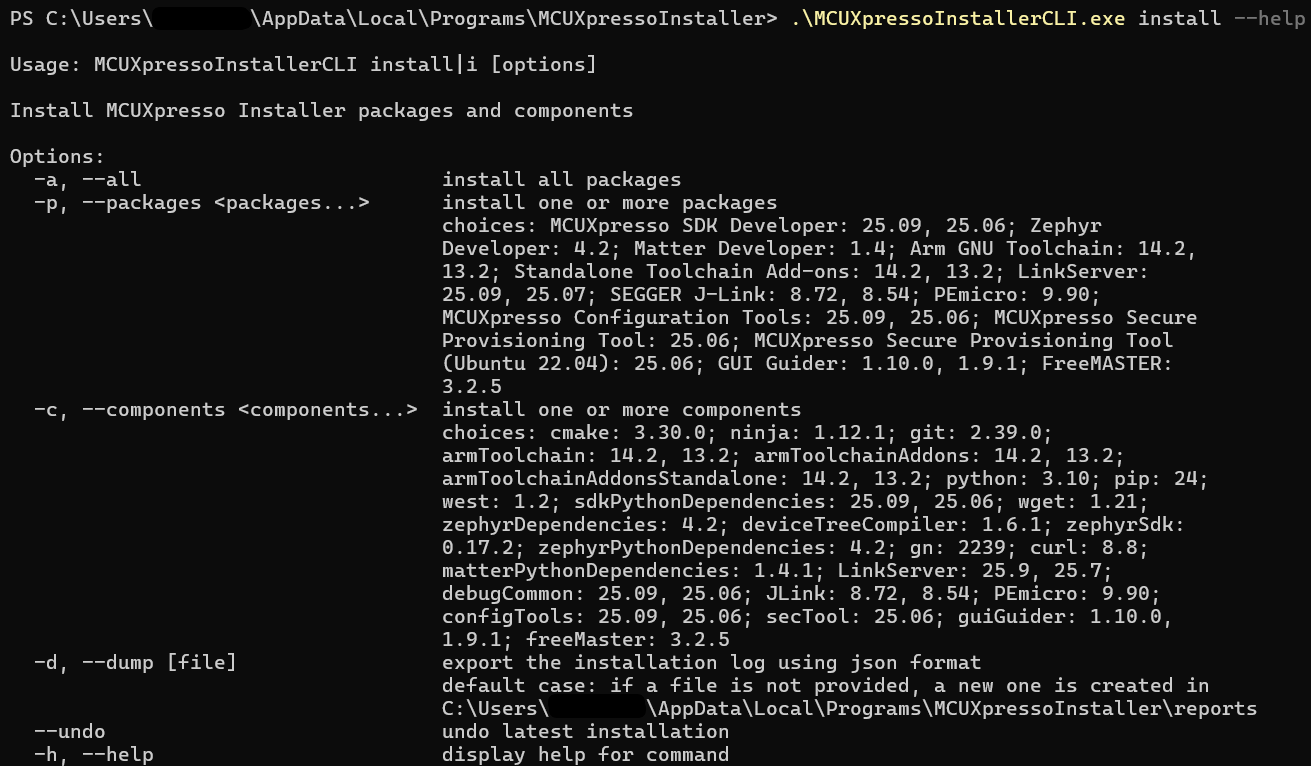
-a, –all- install all packages available.-p, –packages <packages…>- install one or more packages.-c, –components <components…>- install one or more components.-d, –dump [file]- export the installation log using json format.The user can provide the name of a new or existing json file. If the file is not provided, a reports directory is created in a default location (the MCUXpresso Installer installation path) and a new file is created there. This file can be used in automation systems to identify components installation status. In the file, there are two details provided:envUpdate: marked as true when the MCUXpresso Installer added the component to the user’s PATH
exitCode: represents the installation status, 0 for success, non-zero integer for failure with corresponding error code.
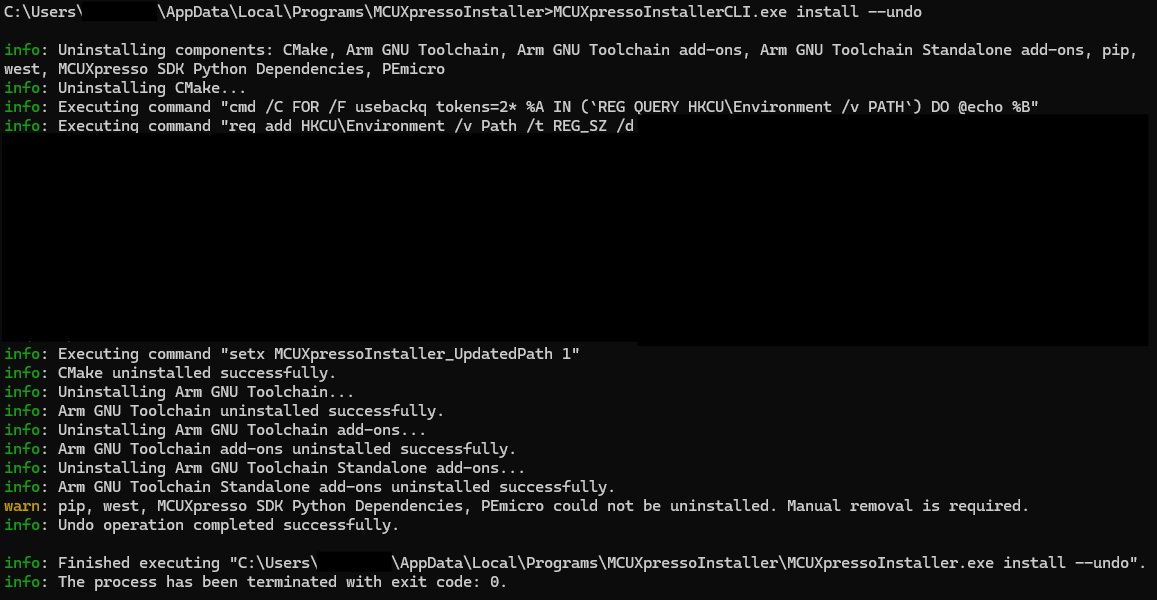
–undo- undo the latest components installation
List command
list | lUsed to give details about packages and components.
Options:
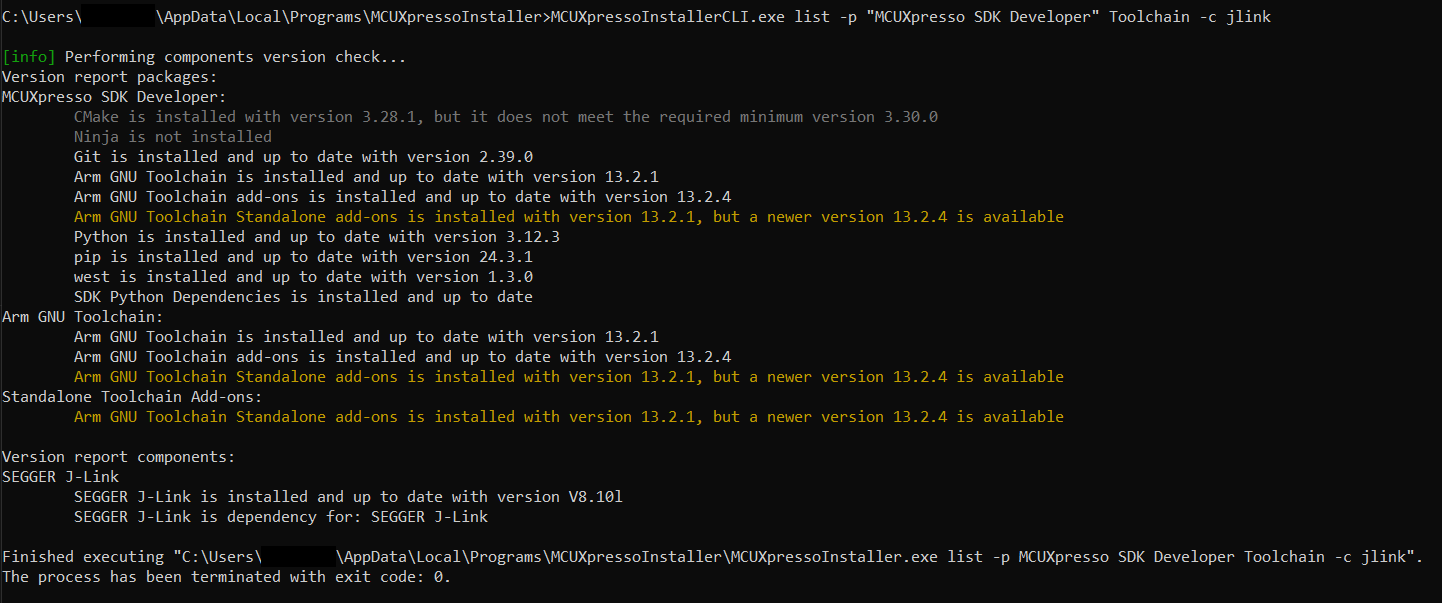
-h, –help- display help for list command. Provides details about options and the choices for arguments.-a, –all- list all packages and the status of components.-p, –packages <packages…>- this option has the possibility to see updates only for some packages.-c, –components <components…>- this option has the possibility to see updates only for some components.-d, –data- list the data from yaml files which contains the relation between packages and components
-e, –export [path]- export the version report using json format. The user can provide the name of a new or existing json file. If the file is not provided, a reports directory is created in a default location (the MCUXpresso Installer installation path) and a new file is created there. This file can be used in automation systems to identify packages and components status. In the file, there are multiple details provided:name: the name of the components
level:
“info” (no action needed)
“warn” (update available)
“error” (component not installed or it does not meet the required minimum version)
installedVersion: the highest version found
versionToBeInstalled: the version that can be installed using MCUXpresso Installer
{
    "MCUXpresso SDK Developer": [
      {
        "name": "CMake",
        "level": "error",
        "installedVersion": "3.28.1",
        "versionToBeInstalled": "3.30.0"
      },
      {
        "name": "Ninja",
        "level": "error",
        "installedVersion": "",
        "versionToBeInstalled": "1.12.1"
      },
      {
        "name": "Git",
        "level": "info",
        "installedVersion": "2.39.0",
        "versionToBeInstalled": "2.39.0"
      },
      {
        "name": "Arm GNU Toolchain Standalone add-ons",
        "level": "warn",
        "installedVersion": "13.2.1",
        "versionToBeInstalled": "13.2.4"
      },
      ...
    ]
}
-u, –updates- this option can be added to the command to show only the components that need updates.
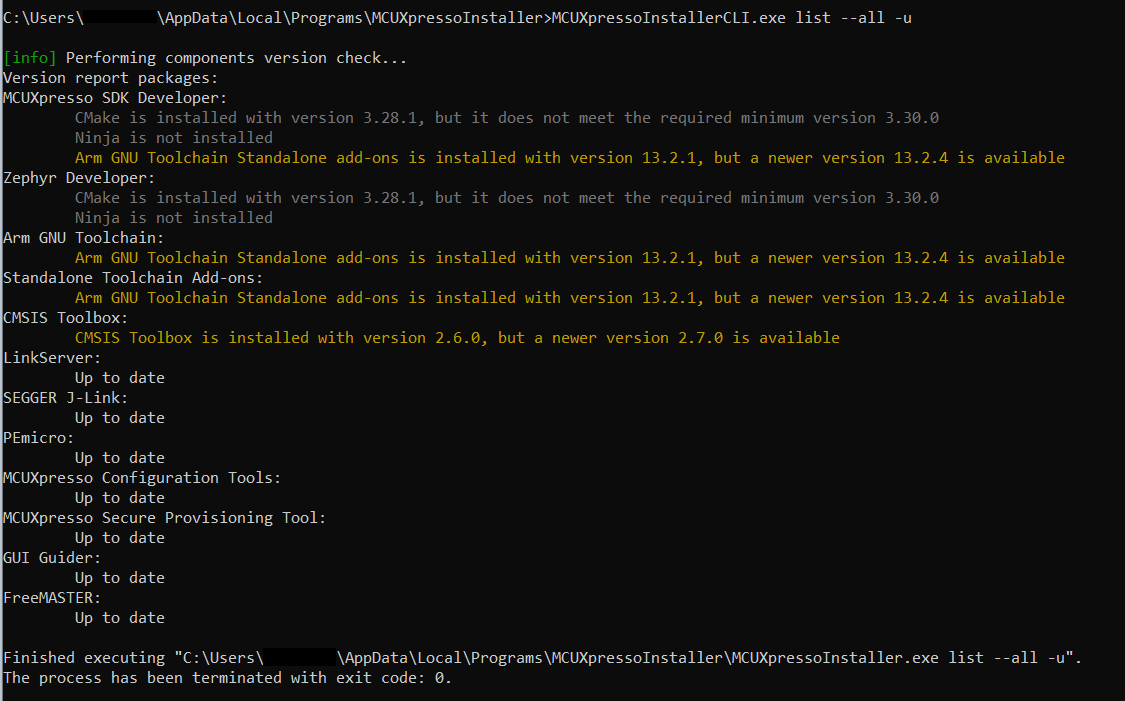
Note: The list command uses multiple colors to highlight the status of components:
default terminal color - the component is up to date
yellow - an update is available
gray
the component is not installed
the component is installed, but it does not meet the required minimum version
Note: The options that are using packages name as arguments supports multiple ways to format the package name
Full name “Arm GNU Toolchain” - make sure using double quotes when the package name has spaces.
Replace spaces with special characters or remove them to avoid using quotes - ArmGNUToolchain, Arm-GNU-Toolchain.
The names of the packages are case insensitive: arm-gnu-toolchain.
A package name can match multiple packages: “toolchain” can be used for “Arm GNU Toolchain” and “Standalone Toolchain Add-ons” at the same time.