Debug patch install#
The RT2660 debug patch is now a combined IAR + J-Link patch, shipped as iar_segger_support_patch_rt2660_vX.Y.zip.
It supports debugging all targets on MIMXRT2660.
Where to obtain the zip: refer to Installing the third-party patch for how to get the
iar_segger_support_patch_rt2660_vX.Y.zippackage.
Use SWD, not JTAG: RT2660 debug uses the SWD interface only. Set your probe’s target interface to SWD in your IDE – JTAG is not supported and the debugger will fail to connect. This applies to every flow in this guide (Ozone, and IAR C-SPY with either a J-Link or CMSIS-DAP probe).
What’s in the zip#
Unzip iar_segger_support_patch_rt2660_vX.Y.zip – it contains:
File |
Purpose |
Needed for |
|---|---|---|
|
SEGGER J-Link device support (jlinkscript, flash loaders, |
Ozone, and IAR C-SPY with a J-Link probe |
|
IAR EWARM debugger / device / flashloader / linker config files |
IAR C-SPY (both J-Link and CMSIS-DAP probes) |
|
Upstream install notes and MD5 checksums |
Reference |
Use the latest patch: newer
iar_segger_support_patch_rt2660_vX.Y.zipreleases carry fixes and broader scenario coverage – always install the newest one.
Debugging in Ozone – you only need the J-Link part.
Debugging inside IAR EWARM – install both the J-Link part and the IAR part.
Install the J-Link part (JLink.zip)#
Existing patch: If an older RT2660 patch is present, remove the folder out of
JLinkDevicesentirely.
Warning – renaming does not disable it: J-Link scans
JLinkDevices/**/*.xmlrecursively and loads every*.xmlregardless of the containing folder’s name. A renamed folder is still loaded and will conflict.
Unzip JLink.zip and copy the NXP\iMXRT2660\ folder (with its contents) into:
C:\Users\<username>\AppData\Roaming\SEGGER\JLinkDevices\NXP\iMXRT2660\
NXP\iMXRT2660\ must then contain, directly:
iMXRT2660.xmliMXRT2660_M85.jlinkscriptMIMXRT2660_XSPI0_NS.FLM/MIMXRT2660_XSPI0_S.FLMMIMXRT2660_XSPI1_NS.FLM/MIMXRT2660_XSPI1_S.FLM
Tip:
iMXRT2660.xmlauto-loads the jlinkscript whenMIMXRT2663xxxxx_M85is selected – leave the “J-Link Script File” field empty in your IDE.
Upgrade J-Link to V8.88 or later#
Older J-Link doesn’t know the Cortex-M85 core and the jlinkscript will fail.
SEGGER downloads: https://www.segger.com/downloads/jlink/
DLL sync: most IDEs (Ozone, IAR) bundle their own J-Link DLL – the standalone installer doesn’t always update those. Run SEGGER’s
JLinkDLLUpdater.exe(shipped with the J-Link install) to sync all bundled copies in one go.
Verify the J-Link part#
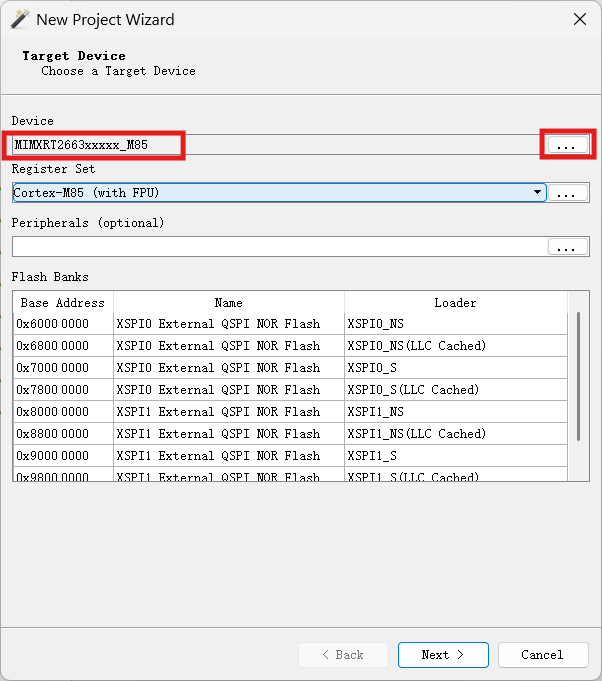
Check 1: device picker shows MIMXRT2663xxxxx_M85
In Ozone (or any J-Link-driven IDE), click ... next to Device – MIMXRT2663xxxxx_M85 should be in the list. If it’s not there, the J-Link part isn’t loaded.
Check 2: J-Link log shows the version banner
The jlinkscript prints its version on every connect. In the J-Link log (Ozone console, IAR debug log, JLinkGDBServer stdout), look for:
iMXRT2660 Cortex-M85 core J-Link script - VX.Y
If the banner is missing or the version differs from what you installed, a stale patch is being loaded.
Install the IAR part (arm.zip)#
Only needed if you debug inside IAR EWARM (C-SPY). Skip this if you only use Ozone.
Unzip arm.zip and merge its arm\ folder into your IAR EWARM installation’s arm\ folder, for example:
C:\Program Files\IAR Systems\Embedded Workbench 9.x\arm\
Merge, don’t replace: copy the patch’s
arm\contents over the existingarm\folder so the new files are added / overwritten. Do not delete other files already in IAR’sarm\folder.
The patch overlays these IAR config files (under arm\config\):
debugger\NXP\–.ddf,.dmac,.svd,MIMXRT2660_M85.ProbeConfigdevices\NXP\i.MX\i.MXRT\–.menu,.i79device definitionsflashloader\NXP\– XSPI flash loaders (.board,.flash,.out,.mac)linker\NXP\–MIMXRT266xxxxxx_M85.icflinker files
Verify the IAR part#
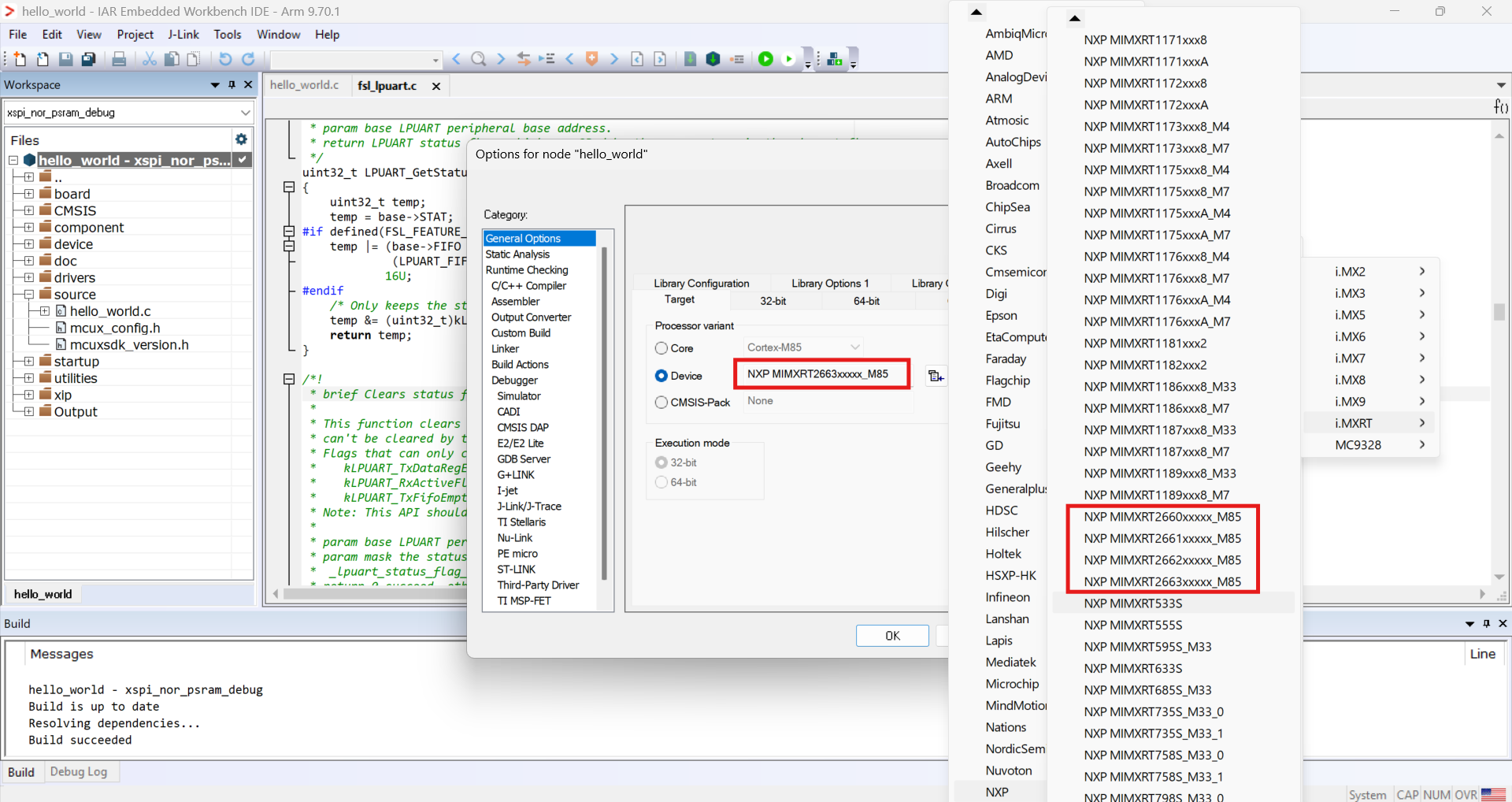
In IAR EWARM, open Project -> Options -> General Options -> Target. The RT2660 device variants (MIMXRT2660 / 2661 / 2662 / 2663) should be selectable. If they’re missing, the IAR (arm.zip) part isn’t installed.