
User interface#
This section provides a detailed description of the user interface.
Creating, saving, and opening a configuration#
In this context, configuration stands for common tools settings stored in an MEX (Microcontrollers Export Configuration) file. This file contains settings of all available tools and can be used in both web and desktop versions.
The folder with the saved MEX file must contain exactly one project file to parse the toolchain project. The file type depends on the toolchain of the project and can be one of the following:
Toolchain |
Project file |
|---|---|
IAR Embedded Workbench |
EWP |
Keil MDK uVision |
UVPROJX |
ARM GCC |
CMakeLists.txt |
CodeWarrior with SDK |
.cproject |
Open-CMSIS csolution |
*.cbuild-gen-idx.yml |
Creating a new configuration#
A new configuration is created automatically on the first run of the tool. The initial processor selection is taken from the active processor/board/kit selection on the Select Development Board page.
If you start creating your development for any NXP board or kit, we recommend you start with an MCUXpresso SDK example to create a configuration for a board or a kit. Such a configuration contains board-specific settings. If you select a processor, the configuration will be empty.
Saving a configuration#
The configuration is automatically saved in the background after every change.
Preliminary processor data#
Some processors are published for public release before their configuration data reaches full RFP (Ready-For-Production) quality. Such processors are marked as preliminary in the processor data.
When you use a processor whose data is marked as preliminary, MCUXpresso Config Tools indicates this in the Problems view by displaying a warning that notifies you that the current configuration relies on preliminary processor data.
Note: Preliminary processor data is subject to change. Configurations based on preliminary data should be re-validated once the final (RFP-quality) processor data becomes available.
Toolbar#
The toolbar is on the top of the window and includes buttons/menus of frequently used actions common to all tools. See the following sections for more information.
Item |
Description |
|---|---|
Call from default initialization |
Set the current functional group to be initialized by the default initialization function. |
Functional group properties |
Open the Functional group properties dialog to modify name and other properties of the function group. |
In addition, the toolbar may contain additional items depending on the selected tool. See the chapters dedicated to individual tools for more information.
Functional groups#
Every Pins/Clocks configuration can contain several functional groups.
These groups represent functions that are generated into the source code. Use the dropdown menu to switch between functional groups and configure them.

Functional groups#
You can use two additional buttons to further configure functional groups:
Icon |
Description |
|---|---|
|
Toggle “Called from default initialization function” feature (in source code) |
|
Opens the Functional group properties window |


Note:
Red/orange background indicates errors/warnings in the configuration.
Functional group properties#
In the Functional Group Properties window, you can configure several options for functions and code generation. Each setting is applicable for the selected function. You can specify the generated function name, select the core (for multicore processors only) that is affecting the generated source code, or write a function description (this description is generated in the C file). You can also add, copy, and remove functional groups as needed.
Aside from name and description, you can choose to set parameters for selected functional groups.
Functional group properties are specific for individual Config Tools:
The Pins tool:
Set custom #define prefix - If this property is set, the custom prefix is used for macros generated into
pin_mux.h. Otherwise, the name of the functional group is used as the prefix.Prefix - The custom prefix string. If it is empty, no prefix is used.
Clocks gate enable - If this property is enabled, the clock gate is enabled in the generated code. The clock gate is needed for access to the peripherals, so have it enabled elsewhere.
Core (for multicore processors only) - Selects the core that is used for executing this function.
Full pins initialization - If this property is set, all pin features are fully initialized in the generated function, even if they match the after-reset state of the processor. If it is not set, the values “Not specified” or “No init” can be selected.
De-initialization function - If this feature is set, an additional function that sets all pins in this functional group to their after-reset state is generated. The new function has a suffix
_deinitby default.Set custom de-initialization function name - Allows specifying a user-defined name of the de-initialization function.
Clocks tool:
Set custom #define prefix - If this property is set, the custom prefix is used for macros define in
clock_config.hOtherwise, the name of the functional group is used as the prefix.Prefix - The custom prefix string. If it is empty, no prefix is used.
Other settings - The processor-specific settings are specific for each processor. See the tooltips for details.
Prefix - It is used for identifiers, constants, and functions related to the functional group that is used in generated code. If it is not specified, no prefix is used.
Set custom #define prefix - If this property is checked, the custom prefix is used for macros define in the generated code. Otherwise, the name of the functional group is used as the prefix.
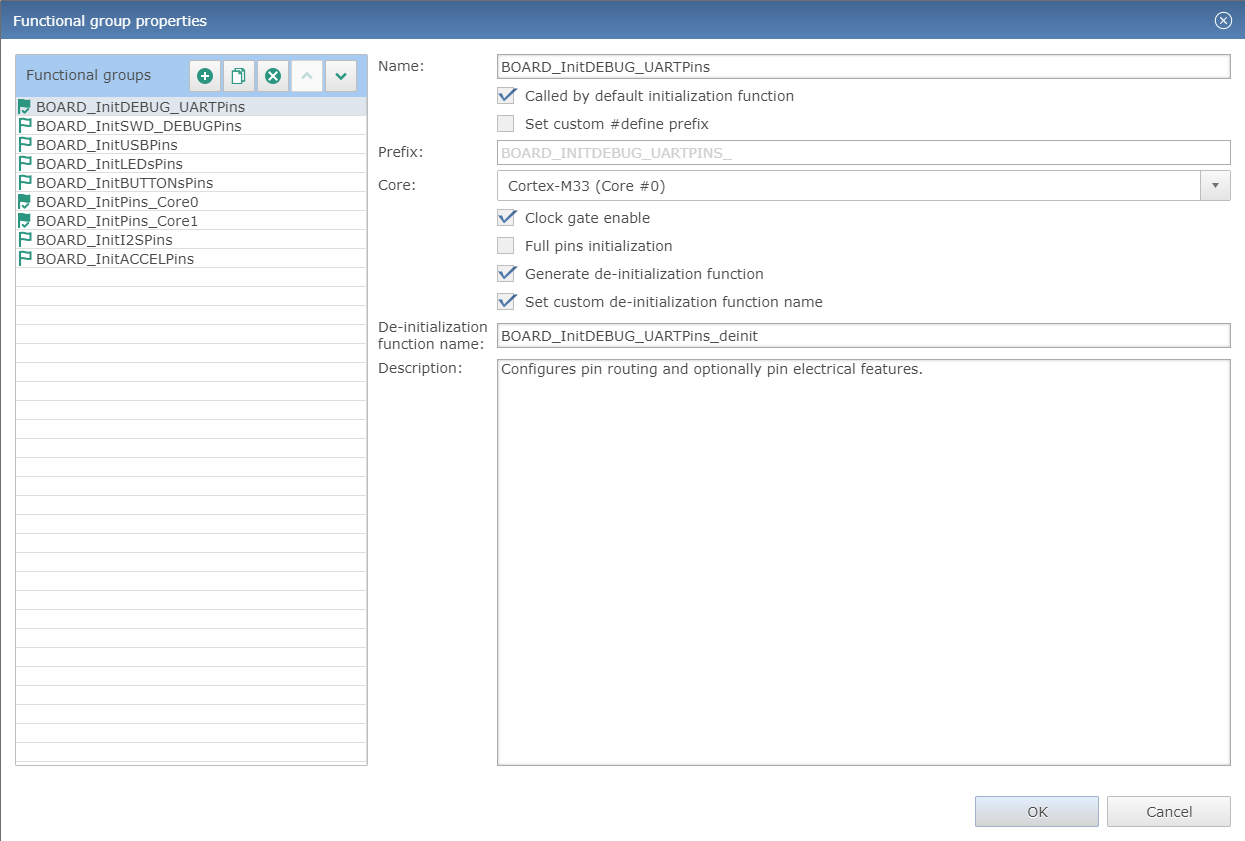
Functional group properties for the Pins tool#