MCUXpresso IDE Project Converter
This option allows to import an existing project from MCUXpresso IDE (Eclipse based). Select from one of the 2 options:
From Projects view (in case it has no projects yet) press “Import Project” button (see the section above) or
From Projects view toolbar select “Import Project” option.
Be sure your MCUXpresso IDE project was already compiled for the build configurations (debug, release, …) you need to convert.
When the import wizard will open and an MCUXpresso IDE project is selected, you’ll be then asked to provide:
Import path - the root MCUXpresso IDE project path where .cproject and .project files are located. If the selected project is identified as a valid MCUXpresso IDE project, this will be reported with a label, right before this field selection (see on the picture below)
Destination - a folder where you want to have generated the MCUXpresso for VS Code project
Choose a repository - the software repository you want to associate with (for instance, if your MCUXpresso IDE was created based on MIMXRT1170-EVK SDK, select a MIMXRT1170-EVK SDK standalone or Github based software repository available in your MCUXpresso for VS Code installation)
Choose a toolchain - choose from available/installed ones a toolchain that will be used for further build process
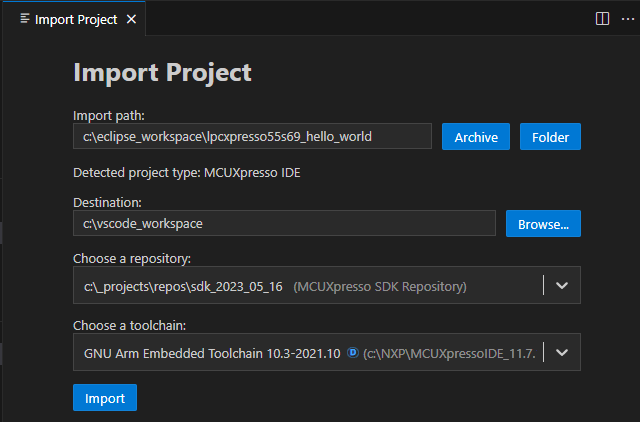
At the end, press Import and a full MCUXpresso for VS Code project will be generated.
Import Multiple MCUXpresso IDE Projects
Multiple MCUXpresso IDE projects can be imported at once by using the Import Multiple Projects command from the command palette and selecting the MCUXpresso IDE project type.
For full details on importing from a directory or an archive, see Import Multiple Projects.
SDK Linkage troubleshooting
Some projects might not have solved the link to the SDK after import. This can be easily identified by looking into the Repository Information node inside the Projects view and determining if Type, Path, ID, Version fields are available with proper values. If not, this will potentially lead to build errors due to the missing SdkRootDirPath value.
In order to overcome this, go to Associate Repository option from Configure context menu and select an SDK from the displayed list. If there is no SDK that suits the converted project, please install one.