Import Multiple Projects
The Import Multiple Projects command allows importing several projects into the workspace at once. It is accessible from the VS Code command palette.

Select source location
After launching the command, an input box is shown where you specify the source — either a directory or an archive file. The path can be provided in three ways:
Typing or pasting the path directly into the input box.
Using the Browse Folder button to open a folder browser dialog.
Using the Browse Archive button to open a file browser dialog filtered to supported archive formats (
.zip,.gz,.tgz,.tar).
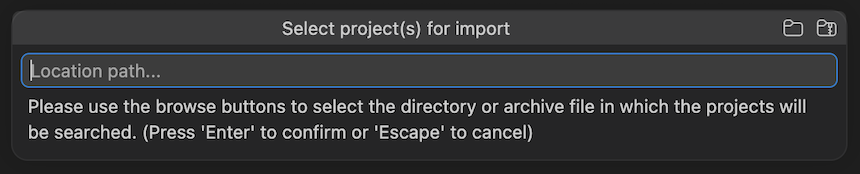
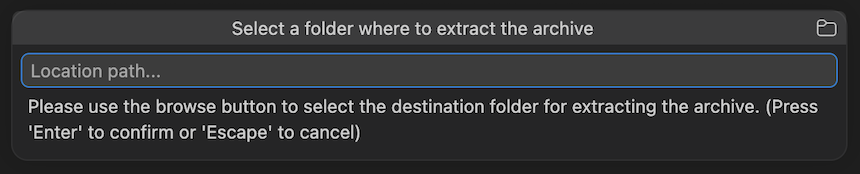
If an archive file is selected, you will be prompted to choose the destination folder where its contents will be extracted. The extraction is performed automatically before the project search begins.
Select projects
The extension recursively searches the selected directory (or the extracted archive contents) and lists all recognized projects, grouped by type. Supported project types include MCUXpresso IDE, MCUXpresso SDK, Zephyr, CMake, and Matter.
One or multiple projects can be selected from the list.
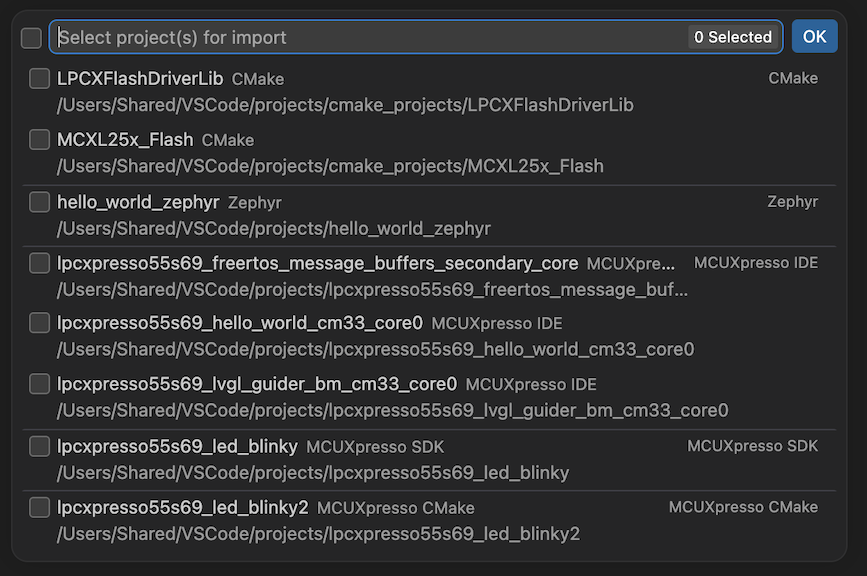
Note: If the same folder contains projects of different types, selecting one type will automatically deselect projects of a different type from that folder.
Select repository and toolchain


Depending on the selected project types, prompts for a repository and toolchain will be shown. For Zephyr projects, a Zephyr SDK selection is requested. For all other project types, an ARM GCC toolchain is requested. The listed options represent the intersection of repositories and toolchains compatible with all selected projects.